Pages and sections
Cart
Choose the cart drawer or the cart page, turn on cart notes, and see what shows on each line.
Choose a cart type
- In the theme editor, open Theme settings > Cart.
- In Cart type, choose:
- Drawer (default): the cart opens at the side of the screen when a customer adds a product. The customer stays on the page.
- Page: the customer goes to the cart page after they add a product.
- Click Save.
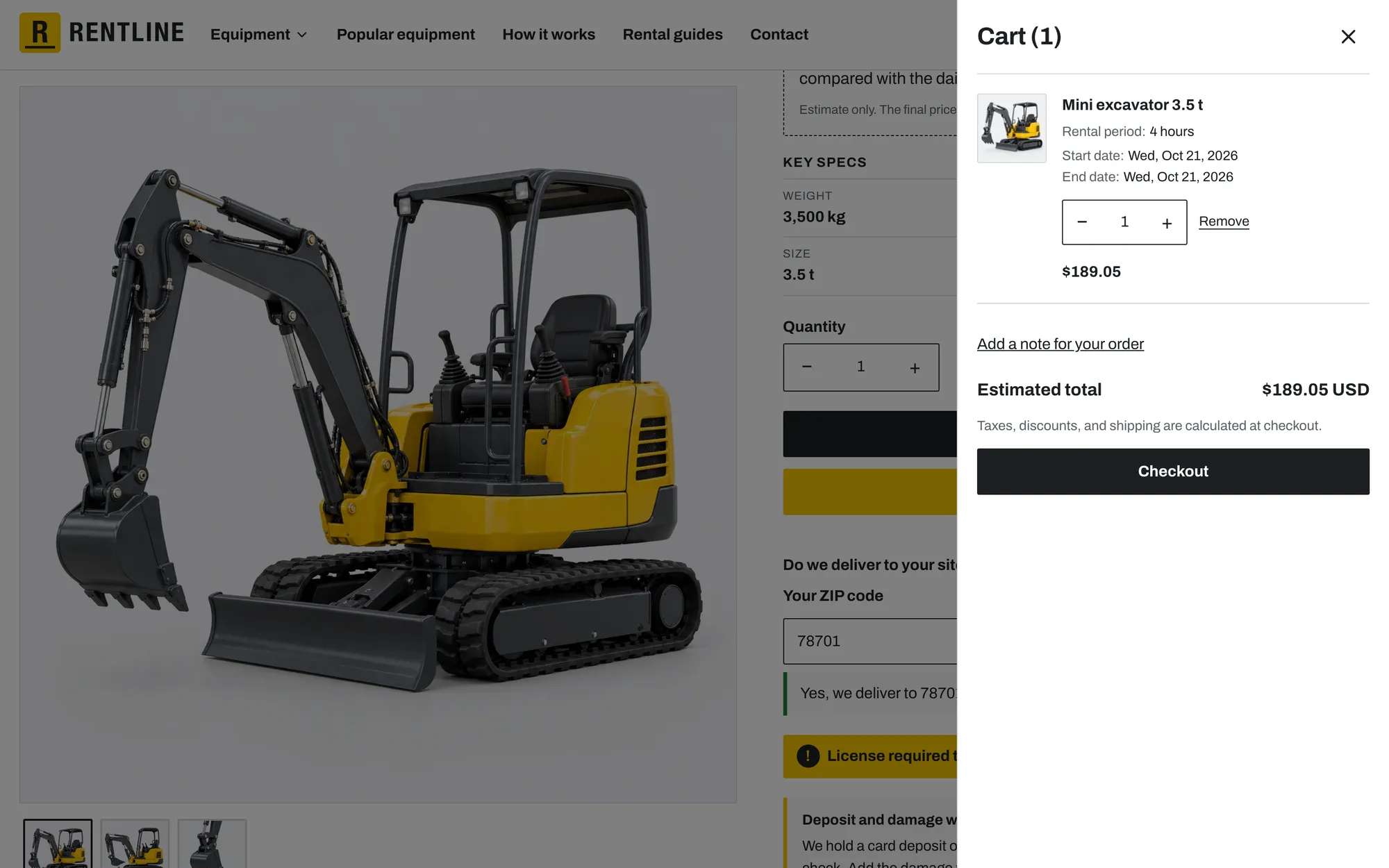
The cart page at /cart is always available, also when you use the drawer.
Cart notes
Turn on Show cart notes in Theme settings > Cart to let customers add a note to the order, for example “Deliver to gate 3”. Notes show on the order in your admin.
What each cart line shows
- Product image and title.
- The selected options, for example “Rental period: 1 week”.
- Line item properties, for example requested dates or details from a booking app. Properties that start with an underscore (
_) and empty properties are hidden. - The subscription or selling plan name, if there is one.
- Unit price, final price, and discounts.
- Quantity buttons and a remove link.
The cart also shows order discounts, a taxes notice, the Check out button, and accelerated checkout buttons such as Shop Pay.
Cart page section
To edit the cart page, choose Cart in the theme editor page selector. The Cart section has a panel next to the cart lines, for the things customers must know before they rent.
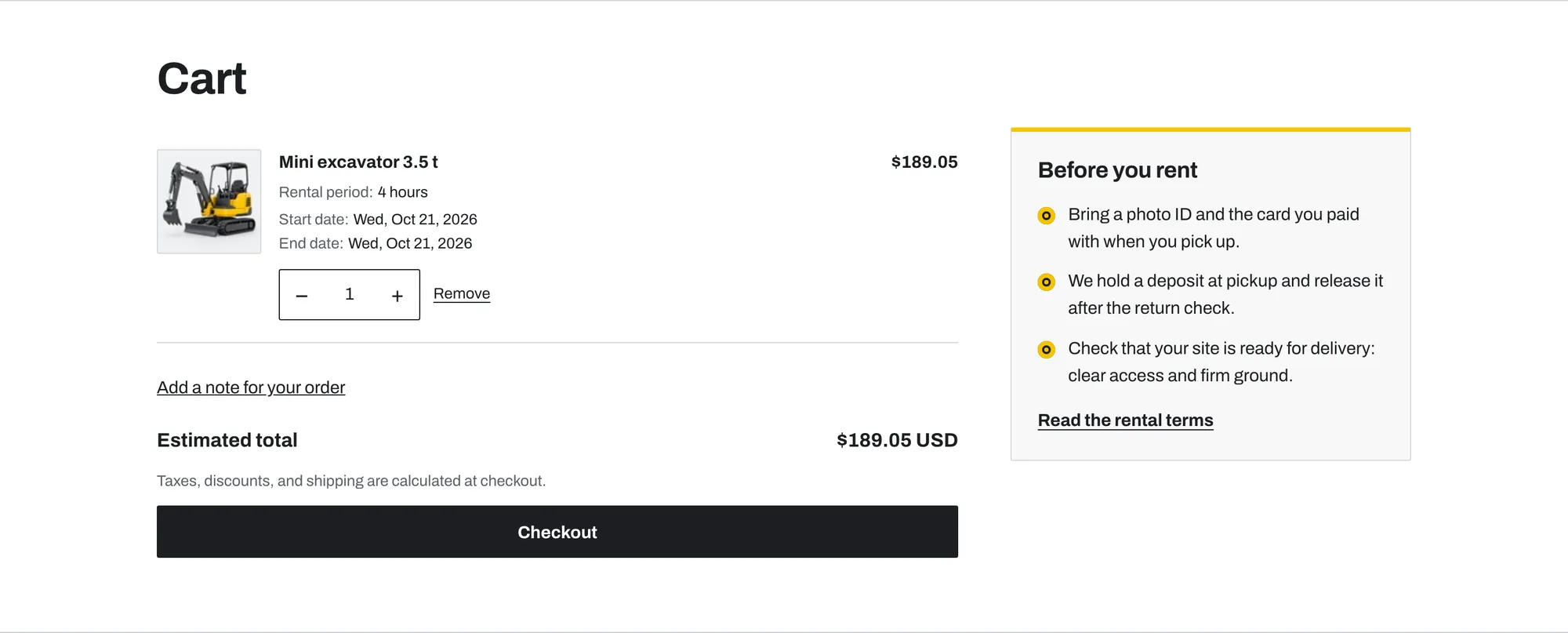
| Setting | What it does |
|---|---|
| Panel heading | Default: “Before you rent”. |
| Link label | Default: “Read the rental terms”. |
| Link | Link to your rental terms page. |
| Color scheme | Colors for this section. |
| Checklist item (block) | One requirement in Text, for example “Bring a valid photo ID”. Up to 6. |
The panel shows only when the section has at least one Checklist item. The link shows only when both Link label and Link are set.
Prices in the cart
The cart uses the price of each variant. If a product page shows one price and the cart shows a different price, check:
- Discounts that apply automatically.
- Market prices in Settings > Markets.
- Prices set by a booking app.
Check prices on your live online store. The theme editor preview can show prices for a different market.
Not answered here? Send us a support request. We reply within two business days.