Get started
Getting started
Install Rentline, choose a preset, and set your colors, fonts, logo, and page layout.
Install the theme
- In your Shopify admin, go to Online Store > Themes.
- Open the Shopify Theme Store and find Rentline.
- Click Try theme to test it, or buy it to add it to your theme library.
- In your theme library, click Customize to open the theme editor.
- When you are ready, click Publish.
Tip: Set up your rental products before you publish. The product page and the product cards need the rental period variants. See Setting up rental products.
Choose a preset
A preset is a starting style: colors, fonts, and color schemes. Rentline has 3 presets:
| Preset | Made for | Heading font | Body font | Accent |
|---|---|---|---|---|
| Rentline | Equipment and tool rentals | Archivo | Archivo | High-visibility yellow on charcoal |
| Marquee | Party and event rentals | Fraunces | Figtree | Rose |
| Basecamp | Outdoor gear rentals | Barlow Condensed | Barlow | Burnt orange and forest green |
You choose a preset when you add the theme. You can change every color and font later in Theme settings.
Set color schemes
Rentline uses color schemes. A color scheme is a set of colors that work together. Each section has a Color scheme setting, so you can change one section without changing the others.
- In the theme editor, open Theme settings > Colors.
- Select a scheme to edit it, or add a new scheme.
- Set these colors:
- Background, and an optional Background gradient. When you set a gradient, it replaces the solid background color.
- Text and Secondary text.
- Borders.
- Accent and Text on accent. These are used for highlights, the selected row in the rate table, and accent badges.
- Button and Button label.
- Outline button.
- Links.
- Under Status colors, set Available, Unavailable, and Sale. These colors show availability on product cards and sale prices.
Each preset has 5 schemes. In the Rentline preset they are:
| Scheme | Use |
|---|---|
| Scheme 1 | White background. Most sections. |
| Scheme 2 | Light gray background. Steps, testimonials, and the locations footer. |
| Scheme 3 | Charcoal background. Branch strip and footer. |
| Scheme 4 | Accent background. Announcement bar, email signup, and the mega menu promotion. |
| Scheme 5 | White background with a charcoal accent. |
Tip: Check that text is easy to read on every background. Good contrast helps all customers. It is very important for customers with low vision.
Set fonts
- Open Theme settings > Typography.
- Choose a Heading font and a Body font. All fonts come from the Shopify font library.
- Change Heading size (100% to 150%) and Body text size (100% to 130%).
- Turn on Use uppercase headings if you want all headings in capital letters.
Add your logo and favicon
- Open Theme settings > Logo.
- Under Logo, upload your logo. A PNG or SVG file with a transparent background works best.
- Set Logo width on desktop (50 to 300 px) and Logo width on mobile (40 to 200 px).
- Under Favicon image, upload a square image. A 32 x 32px .png file is recommended. The favicon shows in the browser tab.
If you do not upload a logo, the header shows your store name.
Set the page layout
Open Theme settings > Layout:
| Setting | What it does |
|---|---|
| Page width | Narrow or Wide content area. |
| Page margin | Space at the left and right of the page (10 to 100 px). |
| Space between sections | Vertical space between sections (0 to 100 px). |
| Corner radius | Roundness of cards, buttons, and boxes (0 to 16 px). |
| Input corner radius | Roundness of form fields (0 to 10 px). |
| Reveal sections on scroll | Sections fade in as customers scroll. See Reduced motion and scroll reveal. |
| Show back to top button | Shows a button that takes customers back to the top of long pages. |
Other theme settings
| Theme settings group | What it controls | More information |
|---|---|---|
| Product cards | Image ratio, vendor, period price, weekly rate, availability, rating, hover image, specs, status badges, and quick view | Prices on product cards, Specs and metafields |
| Rental | Rental period option names, period after prices, savings in rate tables, and the card button on rental products | Setting up rental products |
| Delivery area | The ZIP codes or postcodes you deliver to | Delivery area check |
| Compare | Turn Compare on or off, spec metafields to compare, and spec labels | Set up Compare |
| Cart | Cart type (drawer or page) and cart notes | Cart |
| Social media | Links to your social media accounts | Social media icons |
| Search | Enable search suggestions and Show price in search suggestions | See below |
| Currency format | Show currency codes (for example USD). Cart and checkout prices always show currency codes. |
Search suggestions
When Enable search suggestions is on, the header search shows matching products while the customer types. Turn on Show price in search suggestions to show the price of each product in the list.
Before you publish
The theme ships with sample text that shows how each section works. Some of it describes services, for example delivery or trade accounts. Check that every line is true for your business, and change or delete what is not. Empty fields (an address, a phone number, a testimonial) are hidden from customers, and the theme editor shows a note in their place.
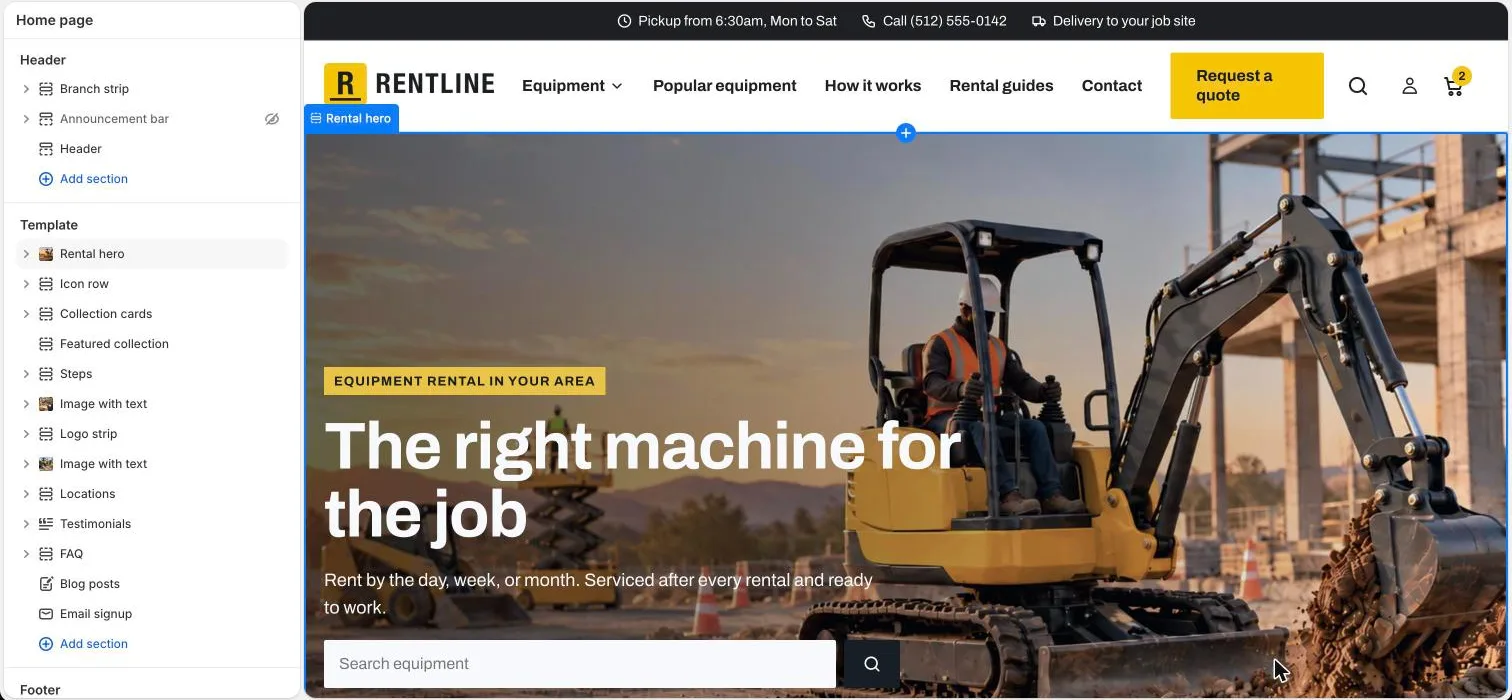
- Header > Branch strip: pickup hours, phone number, and delivery area. The phone item is empty until you add your number.
- Header > Announcement bar: the announcement text, for example “Weekly rates save more than daily rates”.
- Header > Mega menu promotion: “Open a trade account” shows only after you add a Link. Change the text if you do not offer trade accounts.
- Footer > Locations: the yard name, address, pickup hours, and phone number.
- Home page > Icon row: the short promises under the hero, for example “Pickup or delivery”.
- Home page > Image with text “We deliver to your site”: the delivery bullets, for example “Ask about same-day delivery”.
- Home page > Image with text “Open a trade account” and the Trade account page: monthly invoicing and trade rates.
- Home page > Testimonials: add real quotes from real customers, or delete the section.
- Home page > Locations and the Locations page: addresses and hours.
- FAQ sections (home page, FAQ, How it works, and Damage waiver pages): the answers are samples. Replace them with your own policies, for example your deposit and fuel rules, and delete the questions you do not need. A question without an answer is hidden from customers.
- Footer > Text (“About”), the delivery text on the home page and the How it works page, and the text of the Damage waiver page: these are samples. Replace them with text about your business.
- Product page: the blocks and sections listed in Specs and metafields and Product page.
- Theme settings > Delivery area: your areas and the note for addresses outside them.
Next steps
Not answered here? Send us a support request. We reply within two business days.