Get started
Setting up rental products
Use variants for rental periods, label prices per period, and show rate tables and savings.
Rentline uses standard Shopify variants for rental periods. Each rental period is one variant with its own price. Because of this, the cart, discounts, gift cards, Shop Pay, and accelerated checkout all work with no app.
How it works
- Each rental product has an option named Rental period. You can change this name. See Change the rental period option name.
- Each value of that option is one rental period, for example “1 day”.
- Each variant has its own price.
- The theme reads the option to show “/ day” after prices, to build the rate table, and to show daily and weekly rates on product cards.
Create a rental product
- In your Shopify admin, go to Products and click Add product.
- Enter the title, description, images, and vendor (brand).
- Under Variants, click Add options like size or color.
- For Option name, enter
Rental period. Use exactly the same name as in Theme settings > Rental > Rental period option name. - Add one option value for each period. We recommend:
4 hours1 day1 week4 weeks
- Click Done.
- Set a price for each variant.
- Click Save.
Use the same option name on every rental product. Capital letters and extra spaces do not matter: “rental period” and “Rental period” both work.
Products with more than one option
You can add a second option, for example Size with the values 3.5 t and 5 t. The theme finds the rental period option by its name, so the order of the options does not matter. The rate table then shows the periods for the size that the customer selected.
Inventory
Shopify counts inventory for each variant. It cannot share the stock of one machine across “1 day”, “1 week”, and “4 weeks”. The theme shows only whether a variant is available. If you need real fleet availability, use a booking app. See Using a booking app.
Change the rental period option names
The theme finds the rental period by the option name. By default, it accepts these names: Rental period, Hire period, Duration, and Rental duration. Capital letters do not matter.
If your products use a different option name, for example “Rental length”:
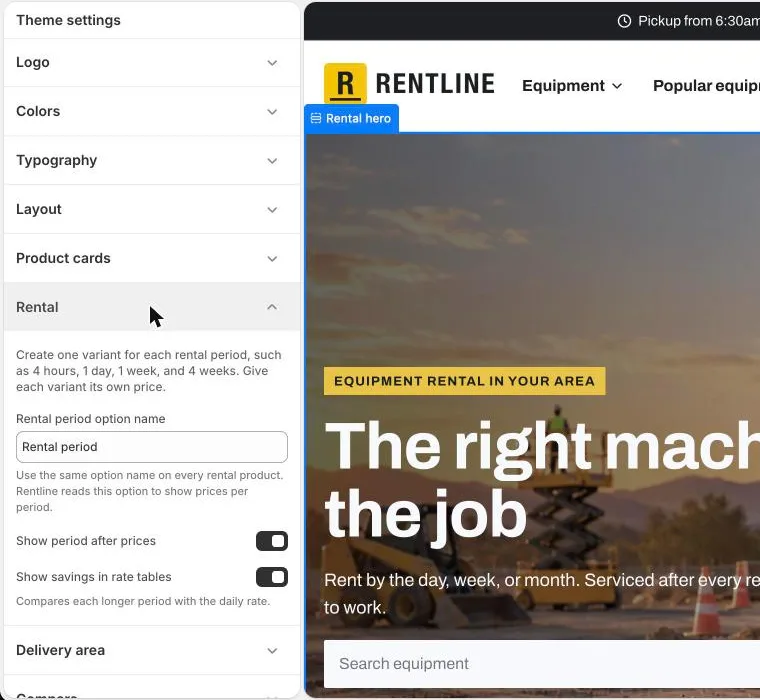
- In the theme editor, open Theme settings > Rental.
- In Rental period option names, add the option name your products use. Separate names with commas, for example
Rental period, Hire period, Duration, Rental length. - Click Save.
If no option matches, the rate table, period labels, cost estimator, and weekly rate on cards do not show. In the theme editor, the Rental period picker block then shows a note on that product. Customers do not see the note. See The rate table does not show.
Period values the theme understands
The theme reads the number and the unit in each option value. It uses them to label prices and to compare periods.
| Option value | Length | Price label |
|---|---|---|
4 hours |
4 hours | $49 / 4 hours |
Half day |
12 hours | $59 / half day |
1 day (or Day, Daily, Day rate) |
1 day | $89 / day |
Overnight or 1 night |
1 day | $89 / overnight |
Weekend |
2 days | $149 / weekend |
1 week (or Weekly) |
7 days | $289 / week |
Fortnight |
14 days | $490 / fortnight |
4 weeks |
28 days | $790 / 4 weeks |
1 month (or Monthly) |
30 days | $890 / month |
Rules:
- The theme looks for a unit word in the value: hour, day, night, weekend, week, fortnight, or month, in singular, plural, or “-ly” form (
hourly,daily,weekly,monthly). The wordshr,hrs, andovernightalso work. - The first number in the value is the count. With no number, the count is 1.
halfhalves the count, soHalf dayis 12 hours. - If the value starts with
1, the label drops the number. “1 day” shows as “/ day”. - A value with no known unit still shows as a label. The theme cannot calculate its length, so it does not get a “Save x%” figure, and the cost estimator does not use it.
Set an exact length with a variant metafield
When the value text does not give the length, for example Week (Mon to Fri) for 5 days, set the length on the variant:
- Go to Settings > Custom data > Variants and click Add definition.
- Enter the name
Rental days. In Namespace and key, enterrental.days. - Select the type Decimal, and click Save.
- Open the product, open the variant, and enter the number of days, for example
5. For 4 hours, enter0.1667.
The metafield wins over the value text. Variants with no value use the value text.
Unit words in other languages
The unit words also come from the theme language. To add words, for example the German “Tag, Tage”:
- Go to Online Store > Themes.
- Next to Rentline, click … > Edit default theme content.
- Search for
rental.units, and add your words to the list, separated by commas.
The English words always work.
Tip:
24 hourscounts as 1 day. Use1 dayto keep your labels clear.
The cost estimator uses only periods of 1 day or longer.
Show or hide the period after prices
In Theme settings > Rental, Show period after prices turns the “/ day” label on or off. It is on by default.
Rate table and “Save x%”
The Rate table block on the product page lists every rental period with its price. The selected period is highlighted. Unavailable periods show “Unavailable”.
<img src=“/rentline/docs/img/product-period-and-rates.webp” alt=“Rate table with “Save 49%” and “Save 64%” badges” width=“640” height=“533” loading=“lazy” decoding=“async”>
“Save x%” compares each longer period with the 1-day rate:
- The theme finds the variant that is 1 day long.
- For each longer period, it multiplies the daily rate by the number of days.
- It compares that total with the price of the period.
Example with a 1-day rate of $289:
| Period | Price | 7 or 28 x daily rate | Shows |
|---|---|---|---|
| 1 week | $1,040 | $2,023 | Save 49% |
| 4 weeks | $2,890 | $8,092 | Save 64% |
“Save x%” shows only when:
- Theme settings > Rental > Show savings in rate tables is on (the default), and
- the product has a 1-day variant, and
- the longer period costs less than the same number of days at the daily rate.
Periods shorter than 1 day (for example 4 hours) never show savings.
To change the table caption, select the Rate table block and enter a Caption. When it is empty, the caption is “Rental rates”.
Prices on product cards
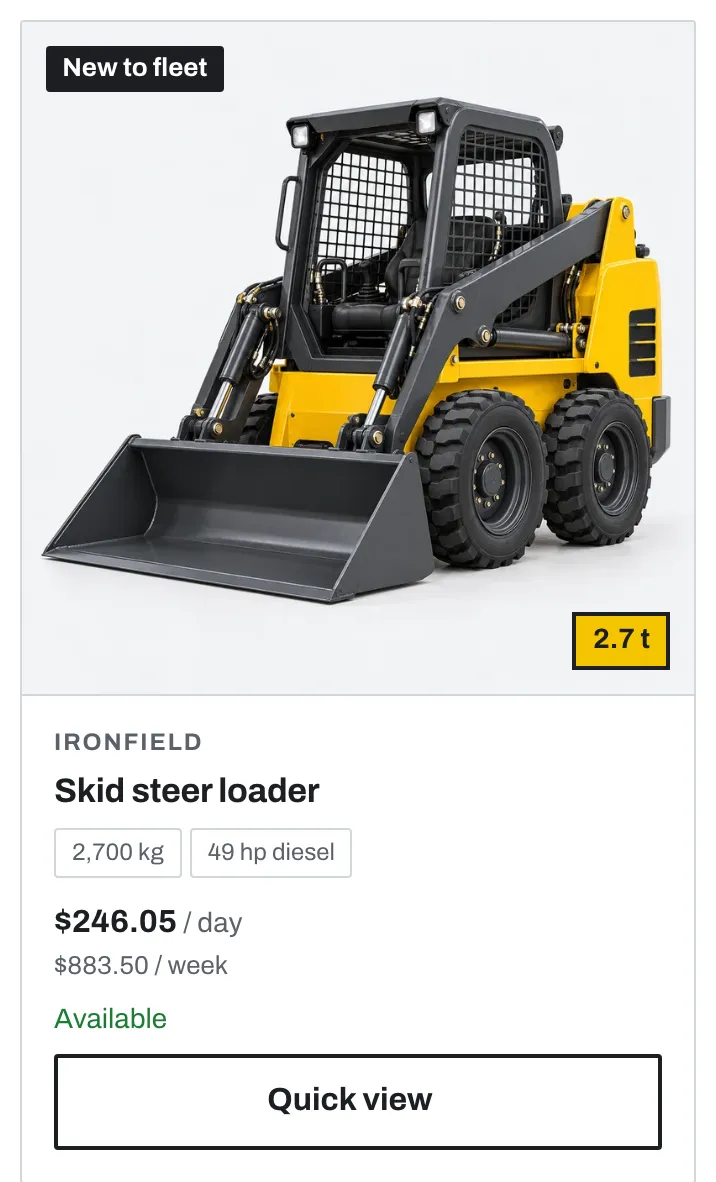
Product cards show in collections, search, featured collections, and recommendations. Set them in Theme settings > Product cards.
| Setting | What it does |
|---|---|
| Image ratio | Square, Landscape (default), or Portrait. |
| Show vendor | Shows the brand above the title. |
| Show price per rental period | Shows the 1-day rate, for example “$289 / day”. If the product has no 1-day variant, it shows “From” and the lowest price. When it is off, the card shows the price of the first available variant. |
| Show availability | Shows “Available” or “Unavailable” in the status colors. |
| Show product rating | Shows the rating from a product reviews app that uses the standard reviews.rating metafield. |
| Show weekly rate | Shows the 1-week price next to the daily rate, for example “$1,040 / week”. The theme uses the variant that is 7 days long. |
| Show second image on hover | Shows the second product image when the customer points at the card. |
| Show status badges from tags | Shows badges from product tags. See Status badges from product tags. |
| Show quick view | On products with more than one variant, the card button opens the product in a dialog. It applies where quick add is on. Rental products follow the setting below. |
Card button on rental products
Quick view shows the price, the period picker, the rate table, and the buy buttons. It does not show the Requested dates block or app blocks, such as the calendar of a booking app. Customers who use quick view can add a rental to the cart with no dates.
Set the button in Theme settings > Rental > Card button on rental products:
| Option | What it does |
|---|---|
| Open product page (default) | The card button opens the product page, where customers choose the period and the dates. |
| Quick view | The card button opens quick view. Use this only when you do not need dates before checkout. |
Products with no rental-period option are not affected. Products with one variant keep the Add to cart button on the card.
Card specs are explained in Specs and metafields.
Products that are not rentals
You can sell items such as gloves, fuel cans, or safety gear in the same store. Do not add a Rental period option to these products. They show a normal price with no period label, no rate table, and no date field.
Not answered here? Send us a support request. We reply within two business days.