Pages and sections
Product page
Every block and section on the Rentline product page, and status badges from product tags.
To edit the product page:
- Open the theme editor.
- In the page selector at the top, choose Products > Default product.
- To preview a different product, click Change in the sidebar and select the product.
Changes to the product template apply to every product that uses it. To give some products a different layout, create a new product template from the page selector. Then assign it to those products in the product admin (Theme template).
Rental product section
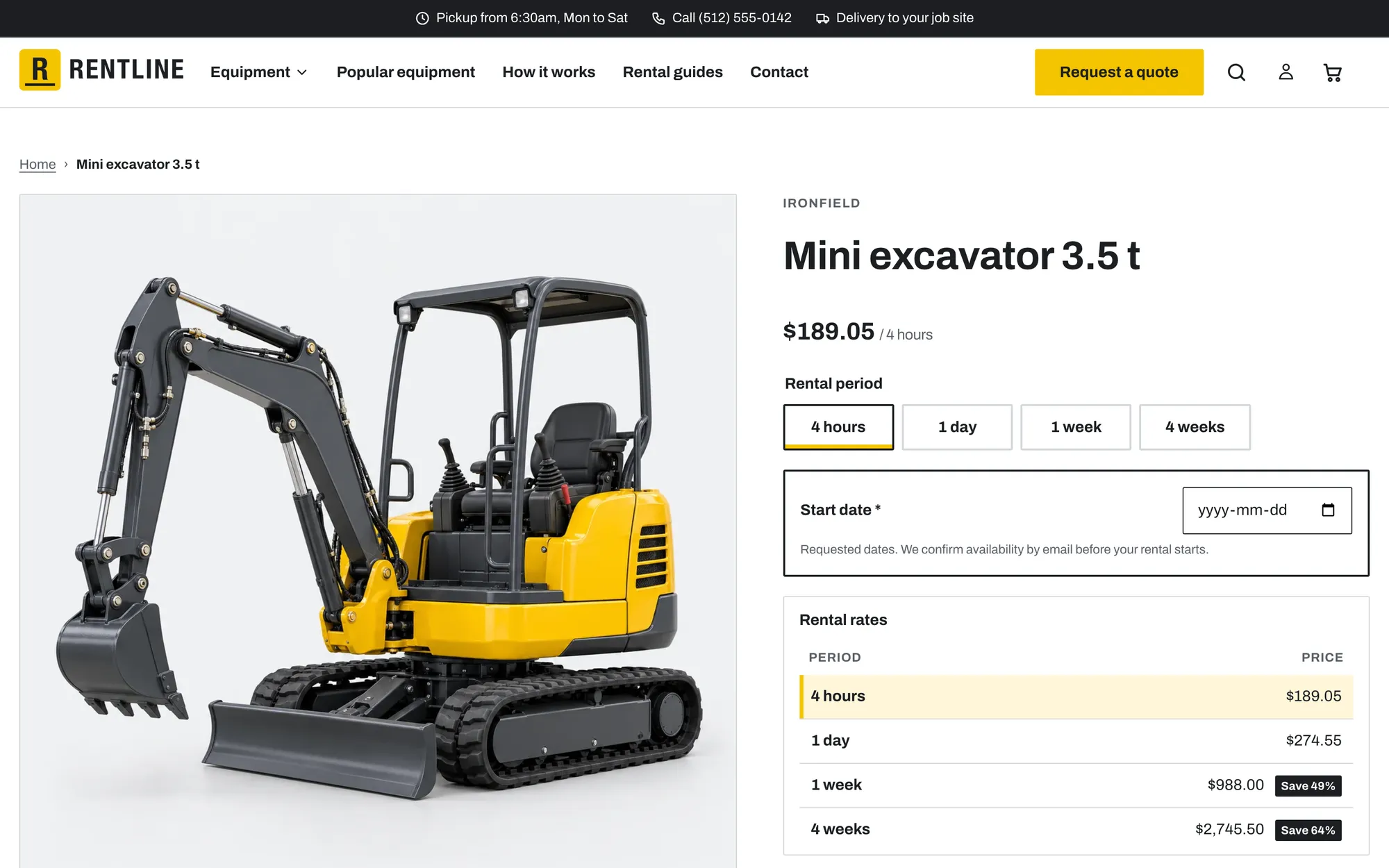
The Rental product section has the product media on one side and the blocks on the other side.
| Setting | What it does |
|---|---|
| Show breadcrumbs | Shows the path to the product above it. |
| Color scheme | Colors for this section. |
| Media position on desktop | Left or Right. |
| Show thumbnails | Shows small images under the main image. |
| Show sticky add to cart bar on mobile | A bar with the title, price, and Add to cart button. It appears after customers scroll past the buy buttons. |
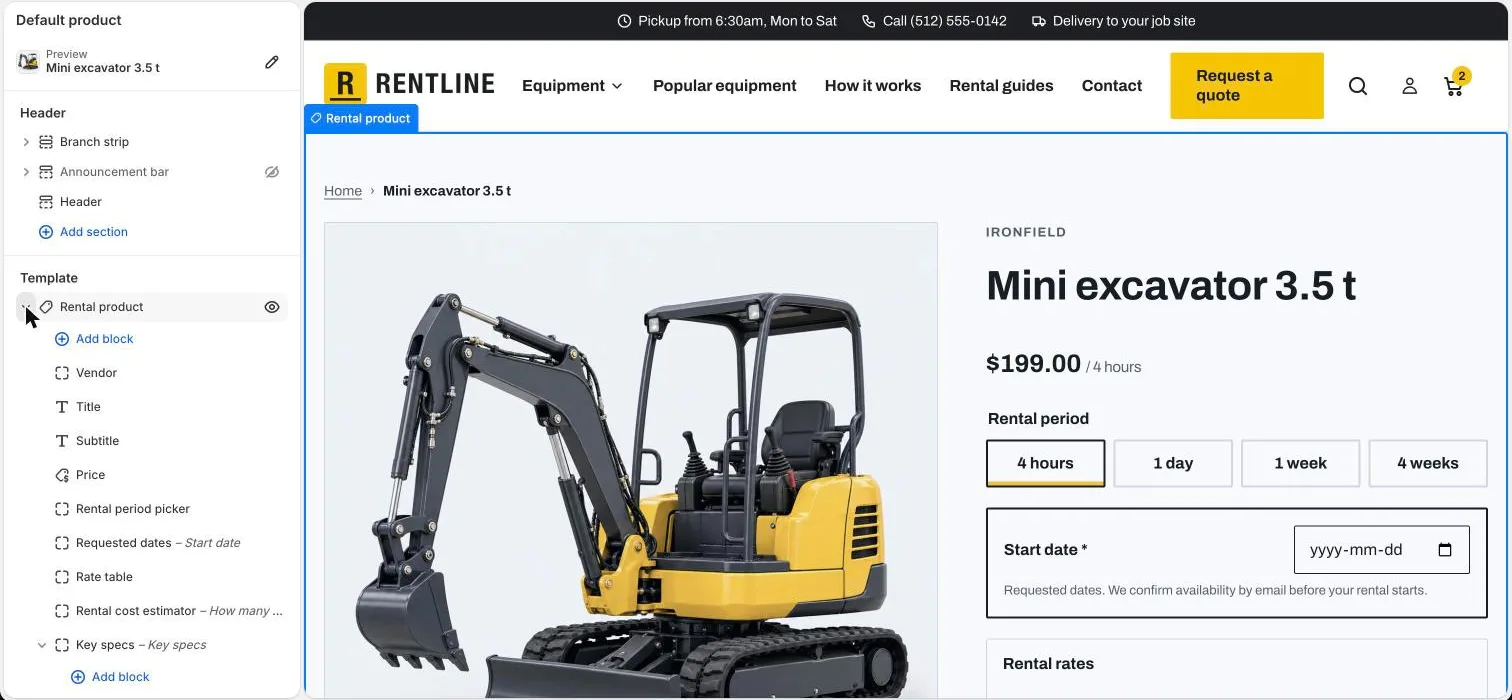
You can add, remove, and reorder blocks. You can also put blocks in a Group to place them side by side. The Group block has the presets Column and Row, and the settings Layout direction (Horizontal or Vertical), Alignment, and Padding.
The default product template has these blocks, from top to bottom: Vendor, Title, Subtitle, Price, Rental period picker, Requested dates, Rate table, Rental cost estimator, Key specs, Quantity selector, Buy buttons, Pickup availability, Delivery area check, License badge, Deposit and waiver, Quote request, Description, Collapsible row, Compare button, and Share.
Blocks
Vendor, Title, Subtitle, Price, Description
- Vendor: the product brand.
- Title: the product title. Heading size: Large, Medium, or Small.
- Subtitle: a short line under the title. Connect Text to the standard Product subtitle metafield to show a different line on each product.
- Price: the price of the selected rental period, for example “$289 / day”. It also shows compare-at prices, unit prices, and a tax notice. Show Shop Pay Installments shows the installments message when Shop Pay Installments is available.
- Description: the product description.
Rental period picker
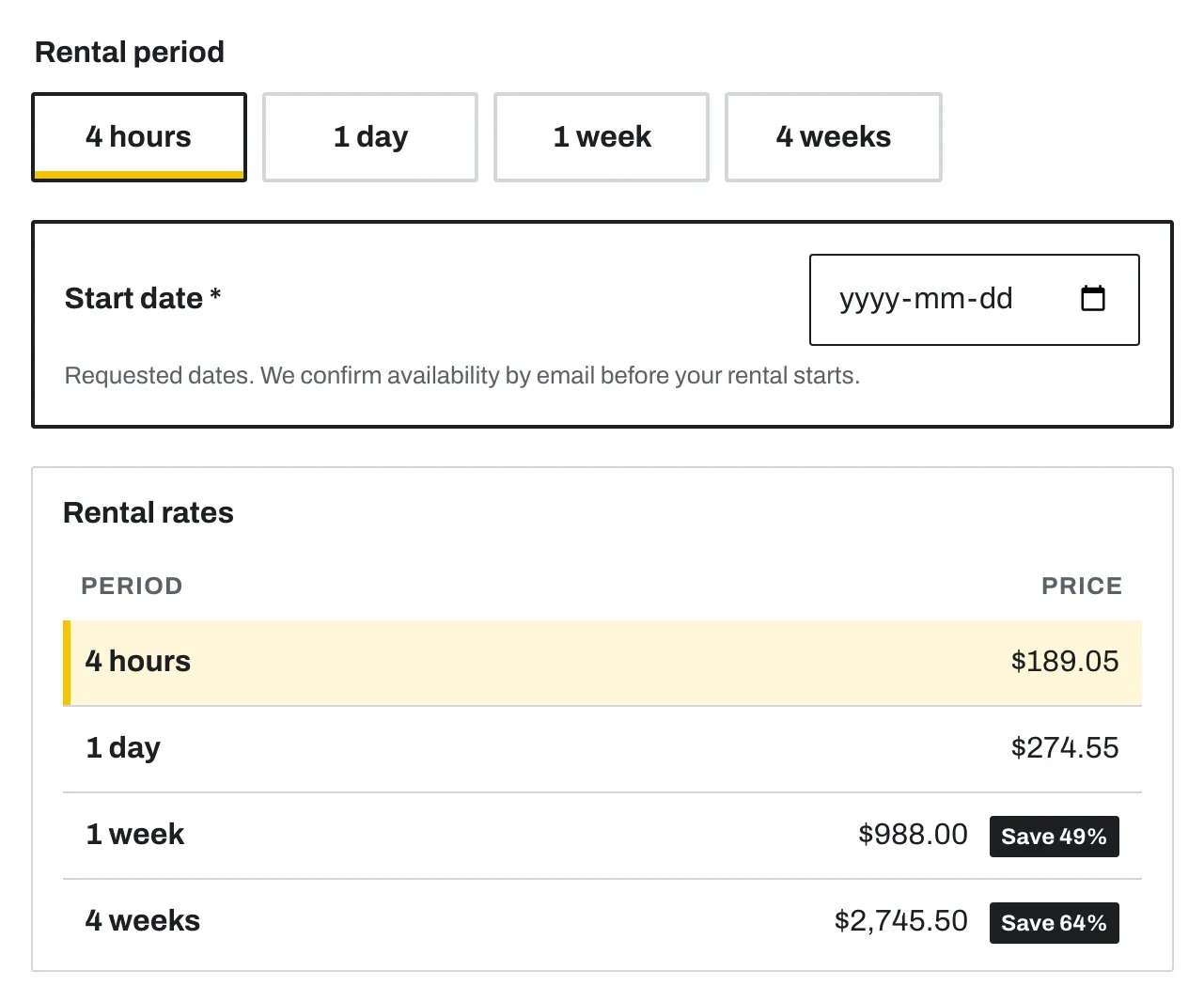
Lets customers choose a rental period and other options.
| Setting | Options |
|---|---|
| Rental period style | Buttons (default), Dropdown, or Hidden |
| Other options style | Buttons or Dropdown. For options such as Size. |
Select Hidden when a booking app lets customers pick dates instead. The period picker then does not show, but the rest of the page still works. See Using a booking app.
When the customer changes the period, the price, rate table, cost estimator, and buy buttons update.
Requested dates
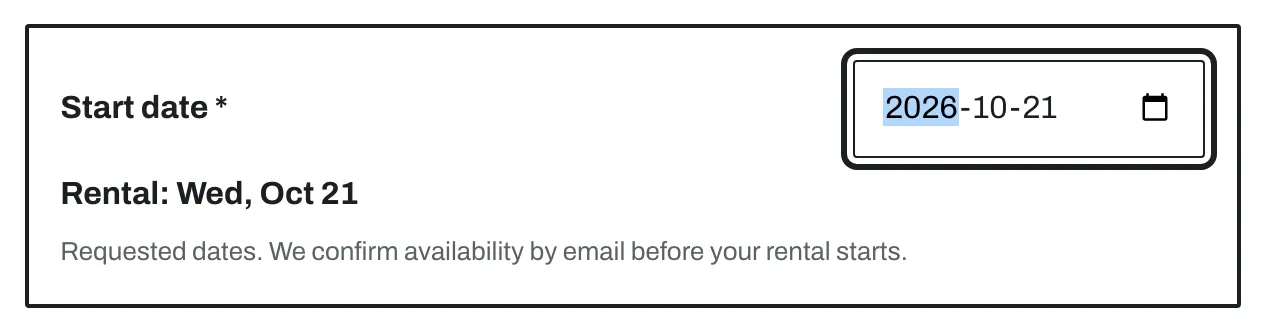
Customers choose a start date. The end date follows from the selected rental period. Both dates are saved on the order as line item properties (“Start date” and “End date”). They show in the cart, at checkout, and on the order in your admin.
The property names do not change with the customer’s language, so order lists, exports, and apps always see the same names. To change them, for example to “Event date”, go to Theme settings > Rental > Requested dates and edit Start date name on orders and End date name on orders. The cart shows these two properties as formatted dates.
The block shows only on products with the rental-period option (see Set up rental products). It does not show on gift cards or on products such as gloves or fuel cans. In the theme editor, a short note tells you when the block is hidden on the product you preview.
| Setting | What it does |
|---|---|
| Label | The field label. Default: “Start date”. |
| Require a start date | Customers must pick a date before they add the product to the cart. Default: off. |
| Earliest start | Days from today (0 to 14). |
| Latest start | Days from today (30 to 365). |
| Help text | Default: “Requested dates. We confirm availability by email before your rental starts.” |
Important: This block does not check availability, block dates, or hold stock. You must confirm each request with the customer. Remove this block when a booking app shows a calendar.
Note: Shop Pay and the other accelerated checkout buttons go straight to checkout. They do not check Require a start date, so these orders can arrive with no start date. Confirm the dates by email for these orders. Shopify requires accelerated checkout to stay available, so do not turn it off only for this reason.
Quick view does not show this block. By default, the button on the cards of rental products opens the product page. See Card button on rental products.
Rate table
Lists every rental period with its price. See Rate table and “Save x%”.
- Caption: a title for the table. When it is empty, the table shows “Rental rates”.
The table uses the rental period option set in Theme settings > Rental. It shows only when the product has 2 or more rental periods.
Rental cost estimator
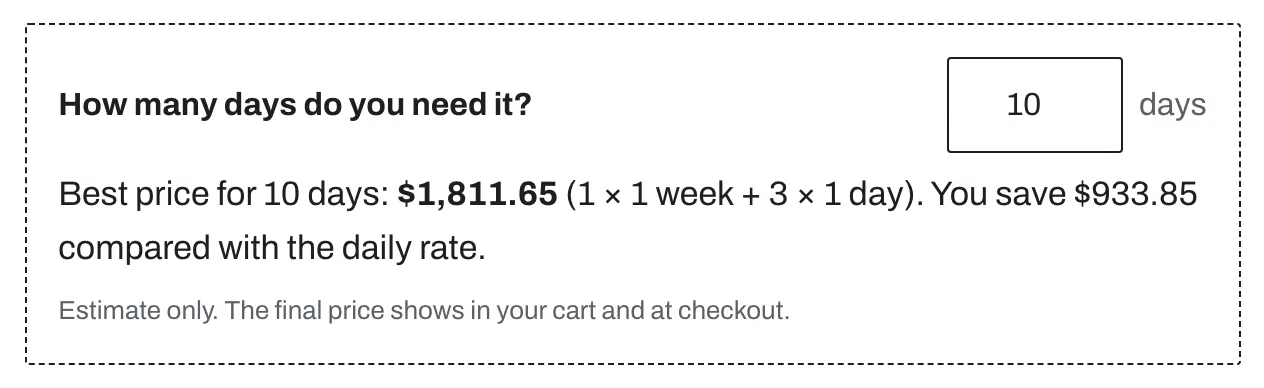
The customer enters how many days they need. The block shows the cheapest combination of rental periods for that number of days. For example, 10 days can be 1 week + 3 days.
| Setting | What it does |
|---|---|
| Heading | Default: “How many days do you need it?” |
| Default number of days | The starting value (1 to 30). Default: 10. |
| Maximum number of days | The highest value a customer can enter (30 to 365). Default: 120. |
Important: The estimate does not check availability. The final price shows in the cart and at checkout. The estimator uses only periods of 1 day or longer.
Key specs
Label and value rows near the price. Connect each Value to a metafield. See Connect Key specs and Spec sheet rows.
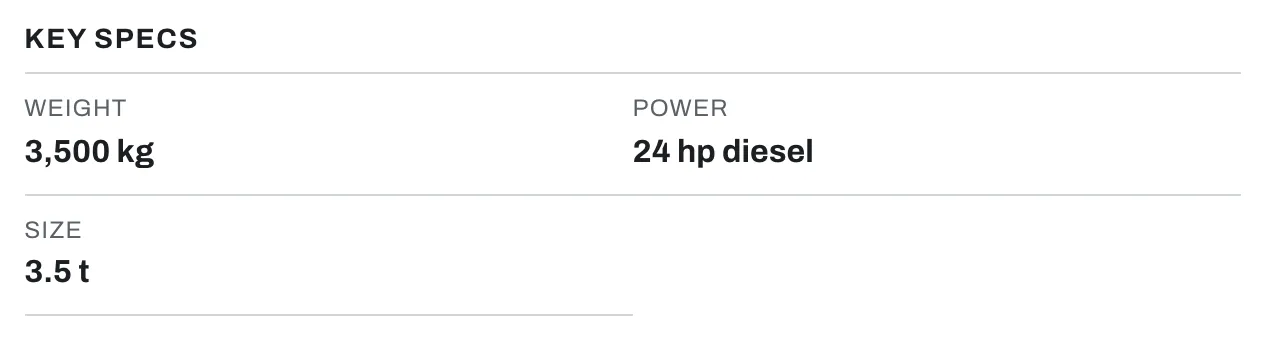
- Heading: default “Key specs”.
- Each Spec row has a Label and a Value. Rows with an empty value are hidden.
Quantity selector
Lets customers rent more than one unit. Keep this block. Shopify requires a quantity selector.
Buy buttons
| Setting | What it does |
|---|---|
| Show dynamic checkout buttons | Shows the payment methods available on your store, such as Shop Pay. On by default. |
| Show recipient form for gift cards | Customers can send gift cards to someone else. |
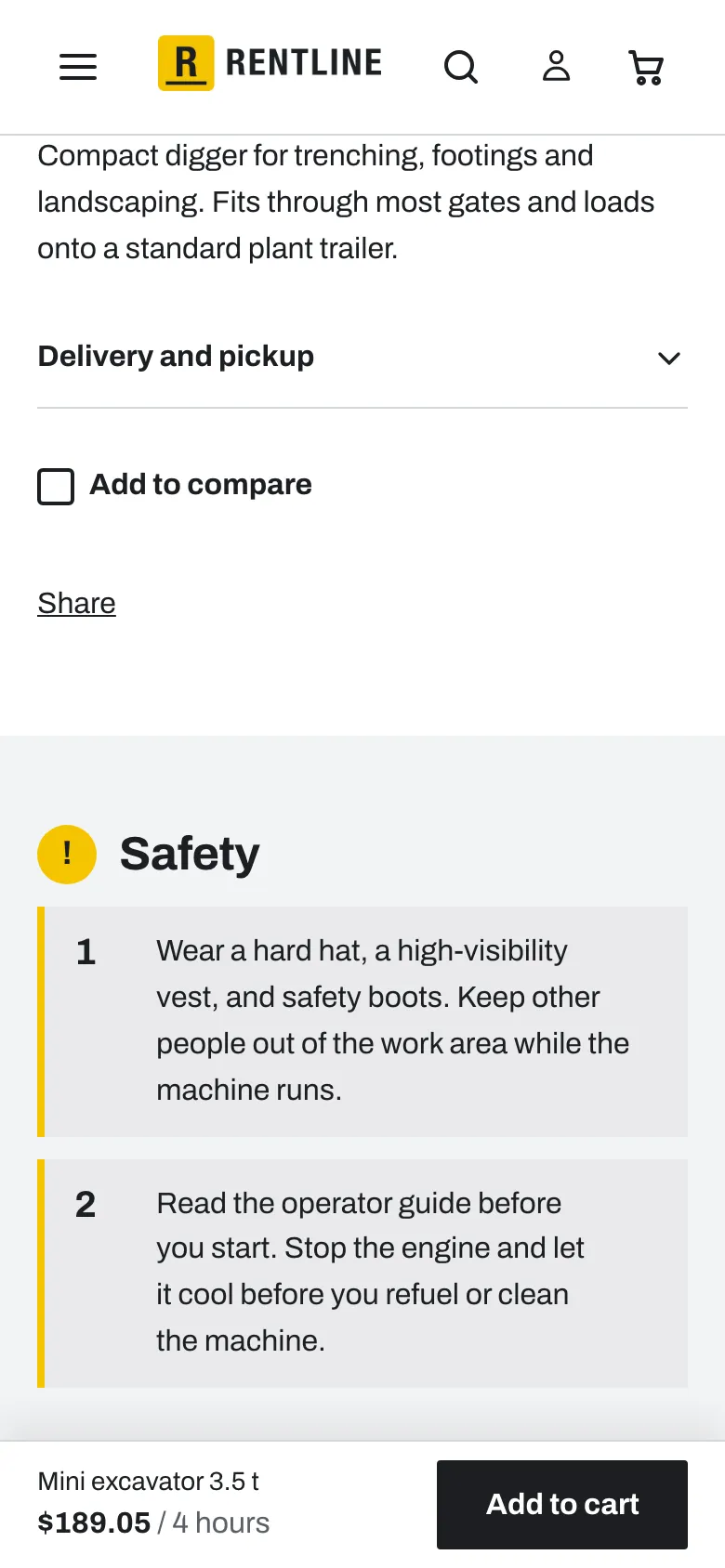
The Add to cart button shows “Sold out” when the selected period is not available.
Pickup availability
Shows if the product can be picked up at your locations. Set up pickup locations in Settings > Shipping and delivery.
Delivery area check
Customers enter a ZIP code or postcode and see if you deliver there. The block has one setting: Heading (default “Do we deliver to your site?”).
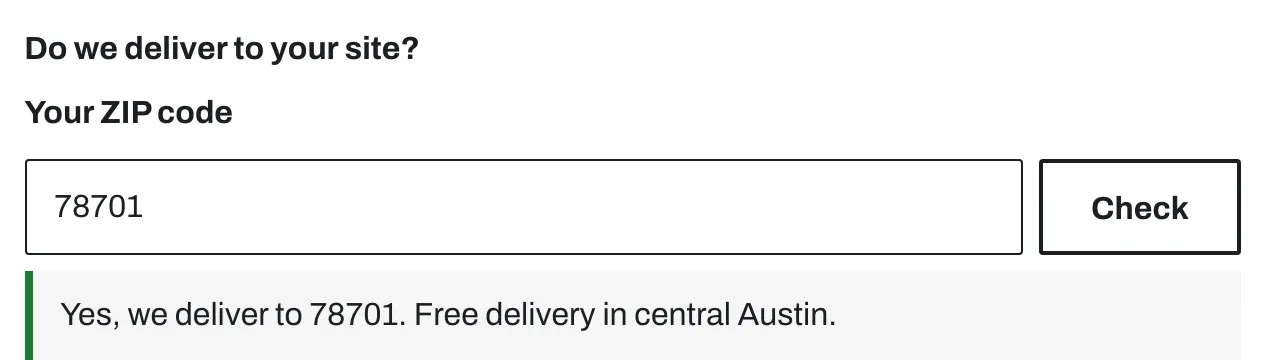
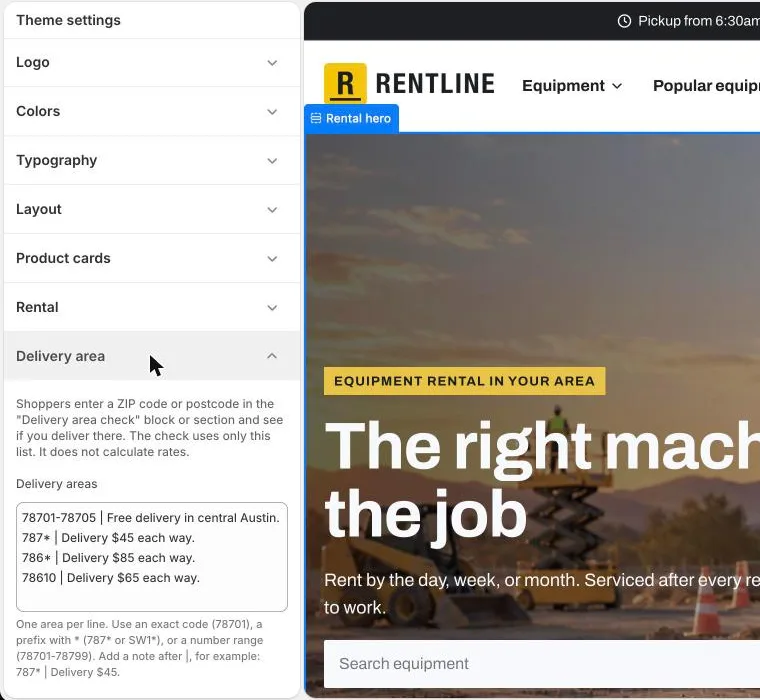
Add your delivery areas in Theme settings > Delivery area:
- In Delivery areas, enter one area per line. Use an exact code (
78701), a prefix with*(787*orSW1*), or a number range (78701-78799). - To show a note for an area, add it after
|, for example787* | Delivery $45. - In Message when you do not deliver, enter the text customers see when their code is not on the list. When you leave it empty, customers see “Contact us and we will try to help.” in their language.
- Click Save.
Note for UK postcodes: A prefix matches every code that starts with it.
SW1*matches SW1A and also SW10 to SW19. To match only one district, list its codes:SW1A*,SW1E*,SW1H*, and so on. Spaces in codes do not matter.
The check uses only your list. It does not calculate delivery rates. The block is hidden until you add delivery areas. There is also a Delivery area check section for any page.
License badge
A badge for equipment that needs a license or a trained operator.
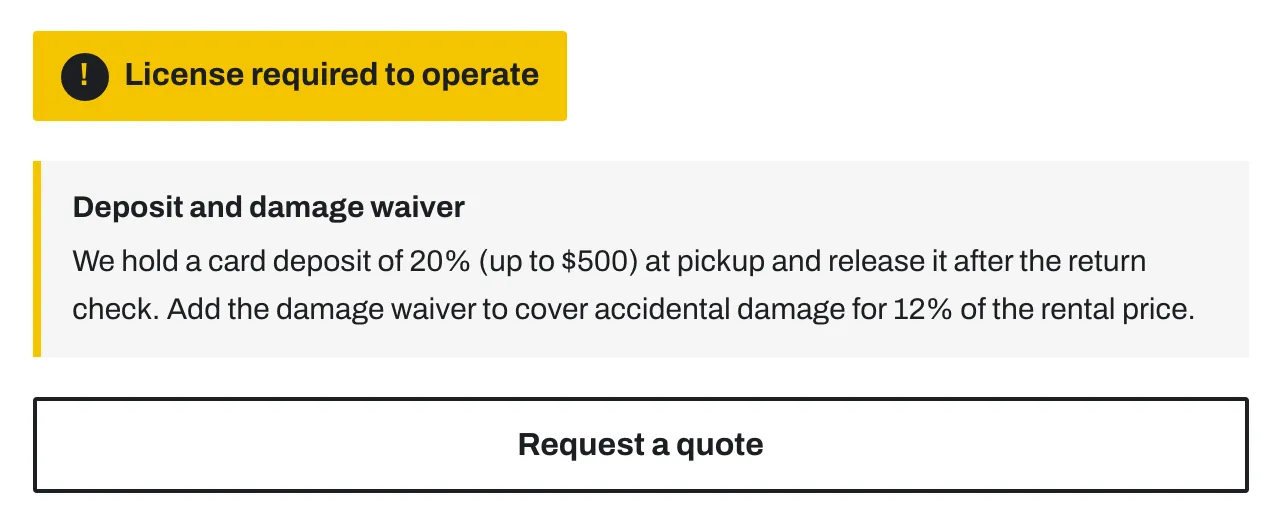
- Text: empty by default, so no product shows the badge after you install the theme.
- Style: Outline or Accent.
To show the badge only on some products, connect Text to a product metafield. Products with no value do not show the badge. If you type a fixed text, every product that uses the template shows the badge, also gift cards and accessories.
Deposit and waiver
A short note about your deposit and damage waiver.
- Heading, Text, Link label, and Link.
- Text is empty by default. Customers do not see the block until you add your text.
- Link to your damage waiver page. See Pages.
Quote request
A button that opens a short contact form. The form fills in the product and the selected rental period. The customer adds a name, email, phone number, when they need the equipment, and a message. You get the request by email, as a normal contact form message.
- Button label: default “Request a quote”.
- Text: a short line above the form.
The quote request is an extra option. It does not replace Add to cart. The “when needed” field is plain text. It is not a date picker, and it does not check availability.
Collapsible row
A heading that opens to show more content, for example delivery details.
- Heading and Text.
- Page content: select a page to show its content instead of the text.
- Open by default.
A row with no text and no page is hidden. The default “Delivery and pickup” row has no text, so add your delivery details, or delete the row.
Add as many collapsible rows as you need.
Compare button
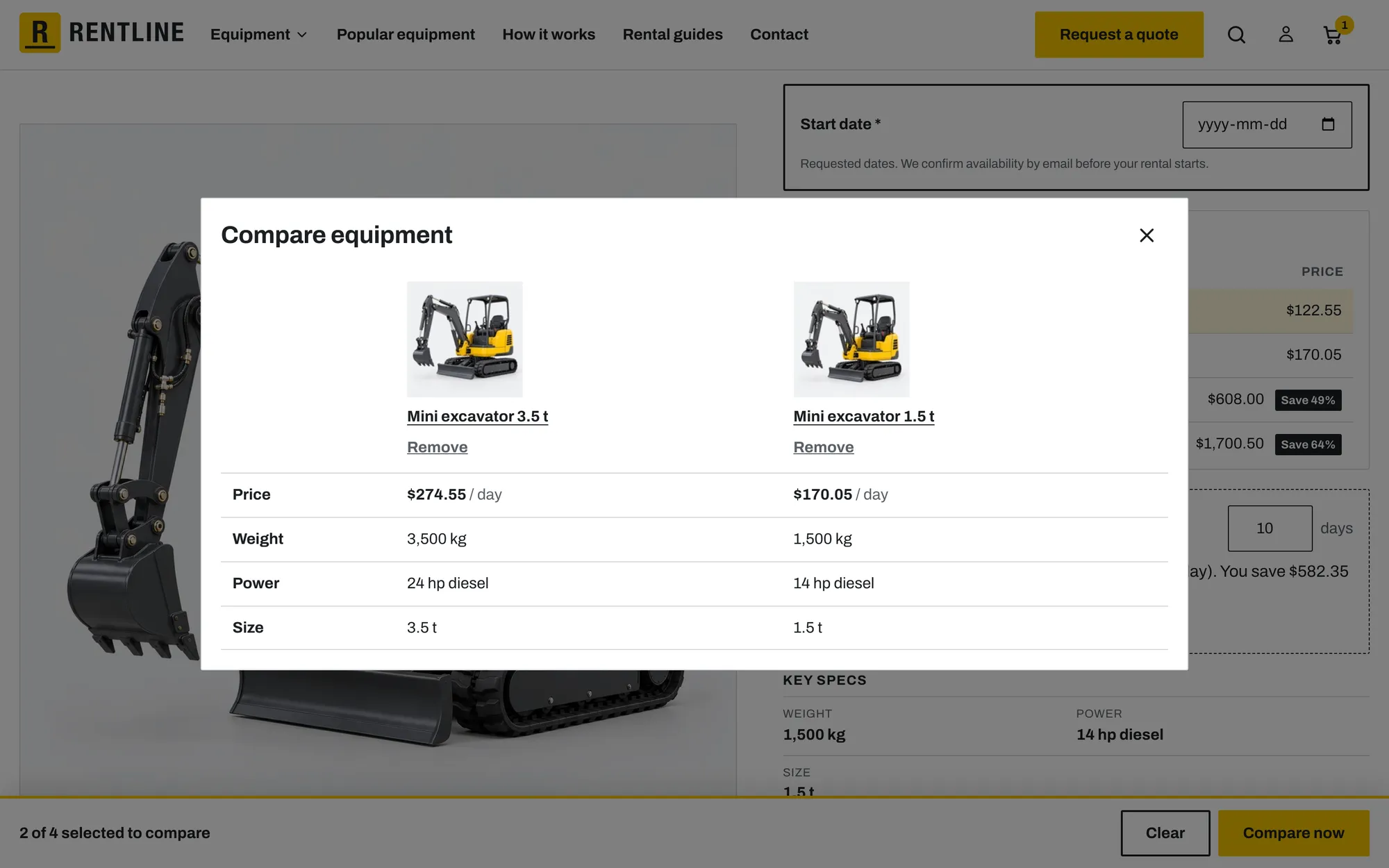
Adds the product to the customer’s compare list (up to 4 products). Choose which specs to compare in Theme settings > Compare. See Set up Compare.
Share
A button to copy or share the product link.
Text and Custom Liquid
- Text: a line of text. Text style: Title, Subtitle, or Normal text. Alignment sets the text alignment.
- Custom Liquid: add app snippets or other code.
App blocks
Apps can add their own blocks to the product section, for example a booking calendar or reviews. Click Add block and look under Apps. See Using a booking app.
Status badges from product tags
You can show a short badge on product cards, for example “New to fleet” or “Just serviced”.
- Make sure Theme settings > Product cards > Show status badges from tags is on.
- In your Shopify admin, open a product.
- In Tags, add a tag that starts with
badge:, for examplebadge:New to fleet. - Click Save.
The card shows the text after badge:. You can add more than one badge tag. Products on sale also show a “Sale” badge.
Sections below the product
Safety and manuals
Numbered safety warnings and document download buttons.

| Setting | What it does |
|---|---|
| Heading | Default: “Safety”. |
| Documents heading | Default: “Manuals and documents”. |
| Safety warning (block) | One safety rule, in Text. Add one block for each rule. |
| Document (block) | Button label and Link. Upload files in Content > Files, then paste the link. |
The two safety warnings in the default template are empty, so the section is hidden until you add text or a document link. The theme editor shows a note in each empty warning. The documents column is hidden when no document has a link. Connect warnings and links to metafields to show different content on each product.
Spec sheet
A full specification table. The default heading is “Full specifications”. Each Spec row has a Label and a Value. You can add up to 30 rows. Connect the values to metafields. See Specs and metafields.

Required with this rental
A Product recommendations section with Recommendation type set to Complementary products. Use it for items customers need with the rental, for example safety gear, fuel, or attachments.
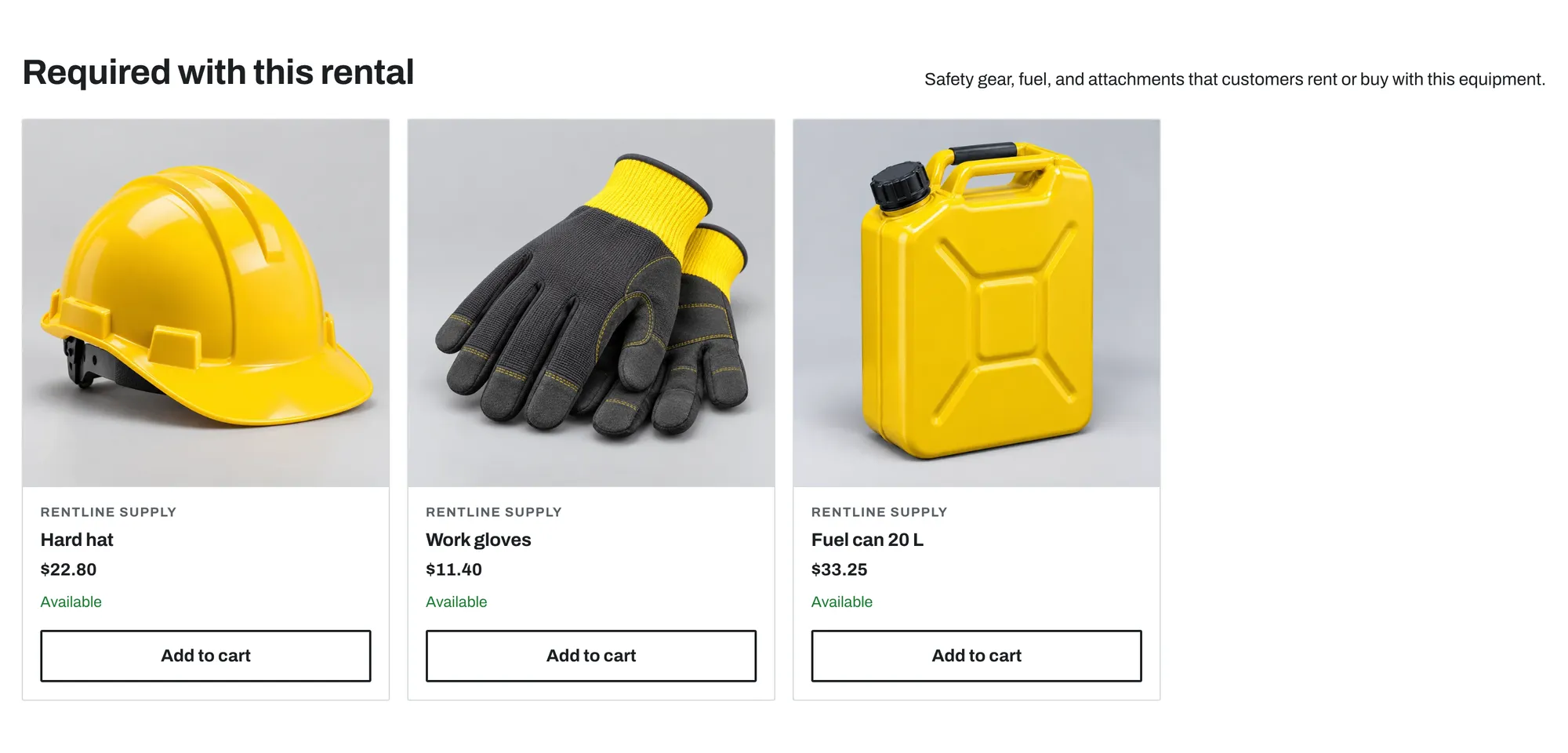
To choose the products:
- Install the free Shopify Search & Discovery app.
- In the app, open Recommendations.
- Search for the rental product.
- Add the complementary products.
- Click Save.
Settings: Heading, Text, Number of products, Columns on desktop, Enable quick add, and Color scheme. Quick add puts products with one variant straight into the cart.
The section is hidden when a product has no complementary products.
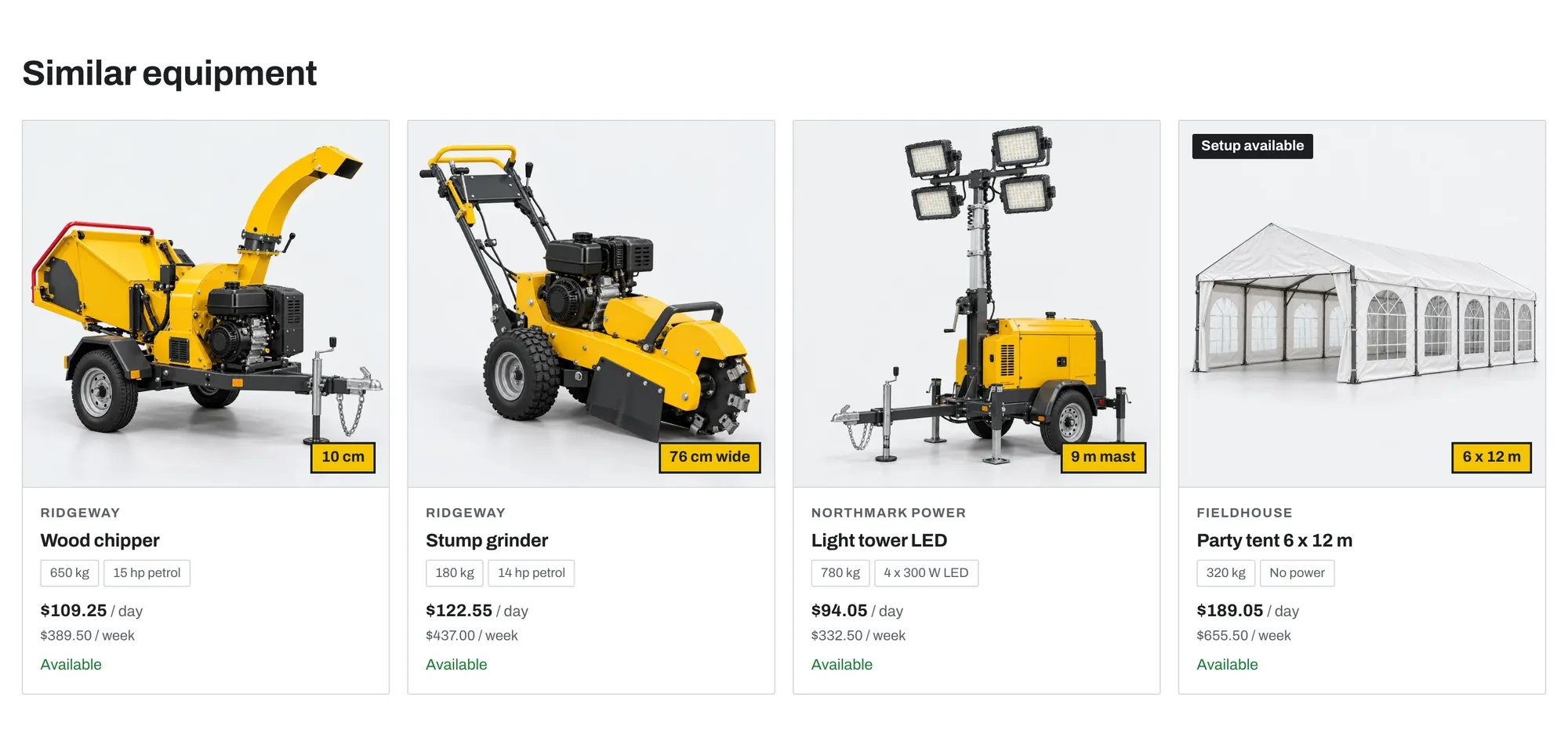
Similar equipment
A second Product recommendations section with Recommendation type set to Similar products. Shopify chooses similar products automatically. You can also set related products in the Search & Discovery app.
Recently viewed
Shows the products the customer looked at before.
- Heading, Number of products, and Color scheme.
The list is saved in the customer’s browser. It is empty for new visitors.
Other sections
You can also add other sections to the product page, for example Steps (“How renting works”), FAQ, Rich text, or Custom Liquid.
Not answered here? Send us a support request. We reply within two business days.