Pages and sections
Header and footer
Set up the branch strip, announcement bar, header, mega menu, quote button, and footer.
The header and footer show on every page. In the theme editor, they are at the top and bottom of the sidebar. You can add, remove, and reorder sections in the header group and the footer group.
Header group
From top to bottom, the default header group has:

- Branch strip
- Announcement bar (hidden by default)
- Header
Branch strip
A thin bar for practical details: pickup hours, phone number, and delivery area.
| Setting | What it does |
|---|---|
| Color scheme | Default: Scheme 3 (charcoal). |
| Show on mobile | Shows the strip on small screens. |
| Item (block) | Icon (None, Clock, Phone, Truck, Map pin, Wrench), Text, and Link. Up to 4 items. |
Tip: Link a phone number with
tel:, for exampletel:+15550100000. Customers on a phone can then tap to call.
Announcement bar
Short messages, for example “Free delivery on weekly rentals”. The announcement bar is hidden in the default header group. To show it, select Announcement bar in the sidebar and click the eye icon.
- Color scheme: default Scheme 4 (accent).
- Announcement (block): Text and Link. Up to 6.
With more than one announcement, customers move between them with the previous and next buttons. The bar does not change messages automatically.
Header
| Setting | What it does |
|---|---|
| Color scheme | Colors for the header. |
| Logo position on desktop | Left or Center. |
| Enable sticky header | The header stays at the top when customers scroll. |
| Menu | The main menu. Default: Main menu. |
| Customer account menu | The menu in the account area. |
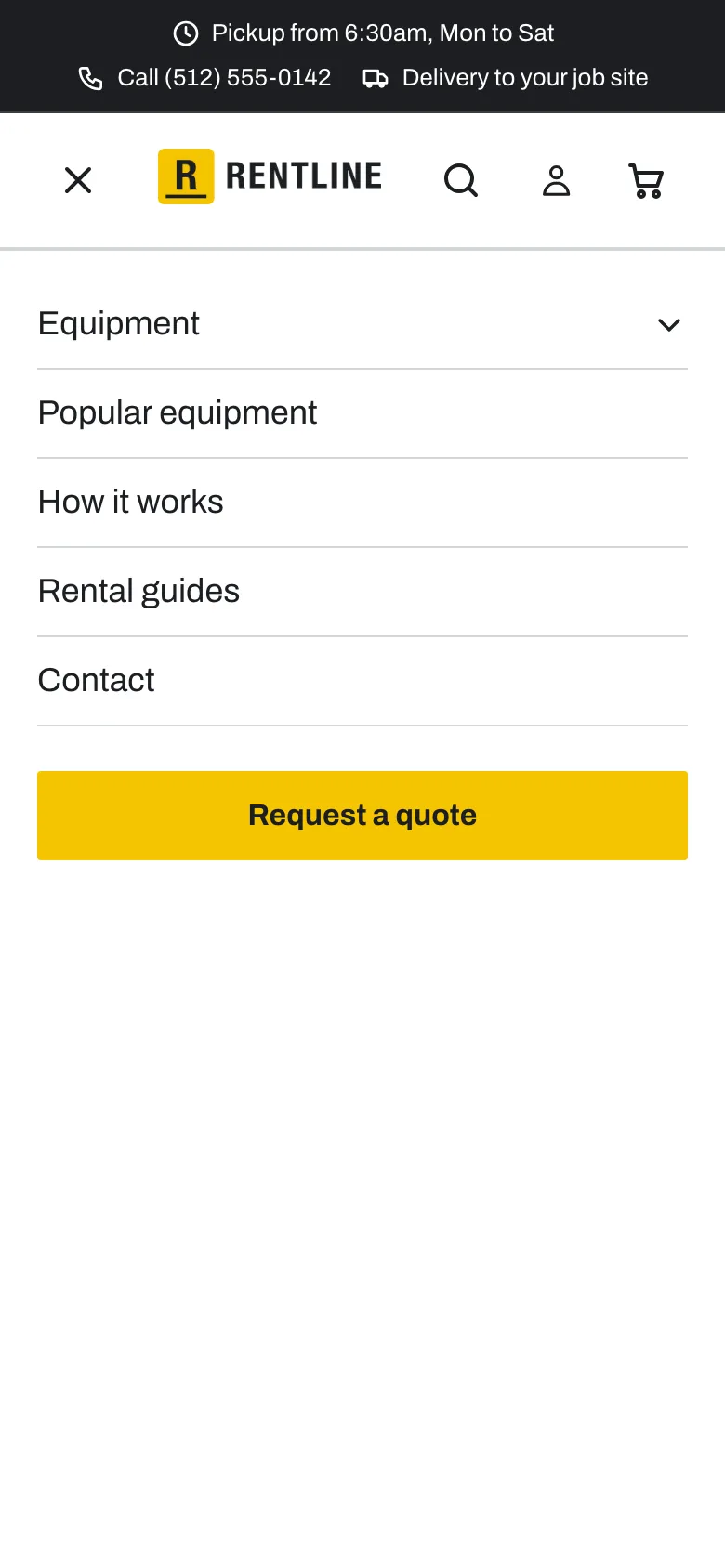
Set the logo in Theme settings > Logo. See Add your logo and favicon.
The header also shows search, the customer account button, and the cart icon with the item count.
Mega menu
On desktop, a menu item with nested links opens as a mega menu. Menus can have up to 3 levels.
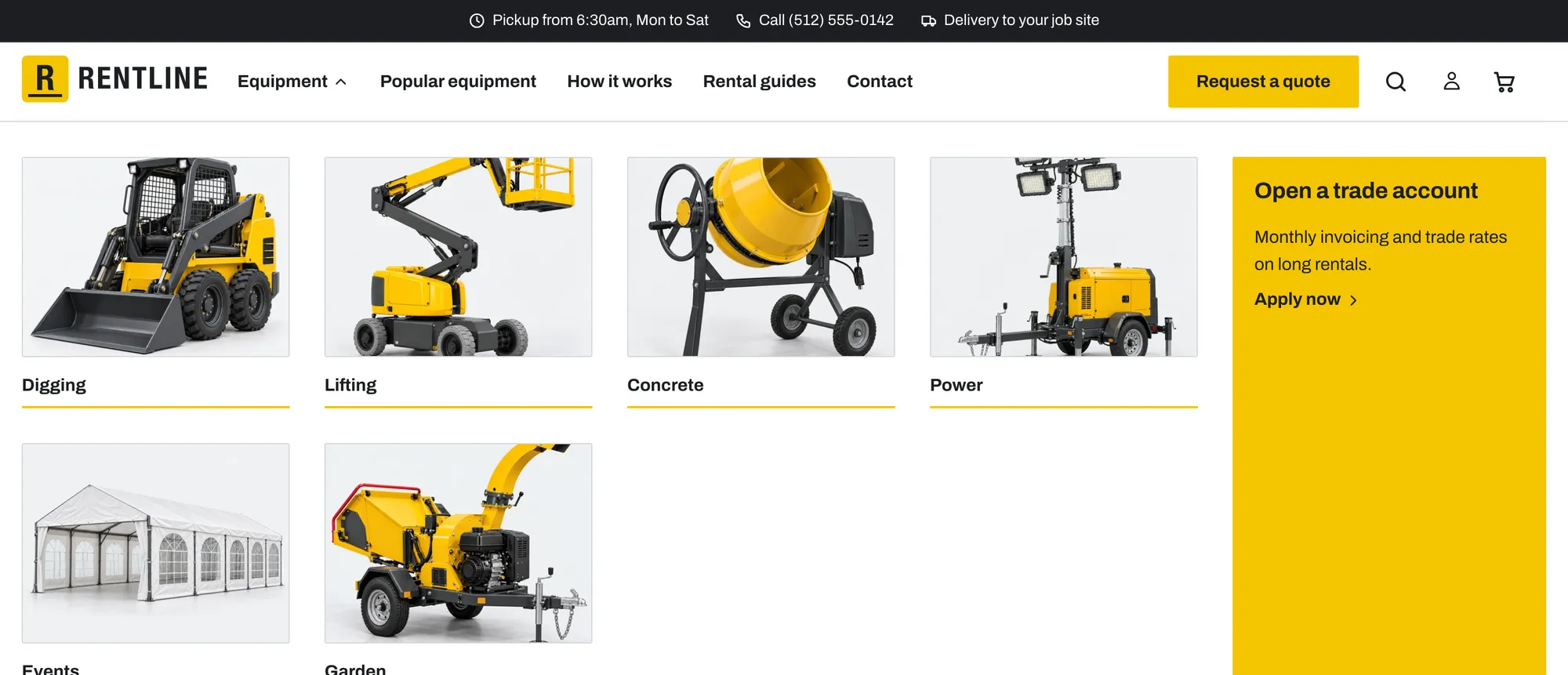
To build the menu:
- In your Shopify admin, go to Content > Menus and open Main menu.
- Add a top-level item, for example Equipment.
- Drag items under it to nest them, for example one item for each job collection (Digging, Lifting, Concrete).
- Add a third level under those items if you need it.
- Click Save menu.
Mega menu settings in the Header section:
| Setting | What it does |
|---|---|
| Show collection images in the mega menu | Shows an image above each second-level link that goes to a collection. It uses the collection image. When the collection has no image, Shopify picks one, usually the first product image. Set a collection image in Products > Collections to choose the image yourself. |
| Show product counts in the mega menu | Shows the number of products next to collection links. |
On mobile, the menu opens in a drawer.
Mega menu promotion
A promotion tile inside the mega menu, for example “Open a trade account”. Set it under Mega menu promotion in the Header section.
| Setting | What it does |
|---|---|
| Menu item | The title of the top-level menu item that shows the promotion, for example Equipment. Leave it empty to show the promotion in every mega menu. |
| Image | The tile image. |
| Heading | Default: “Open a trade account”. Remove the heading to hide the promotion. |
| Text | Default: “Monthly invoicing and trade rates on long rentals.” |
| Link label | Default: “Apply now”. |
| Link | Where the promotion goes. Leave it empty to use your Contact page. |
| Color scheme | Default: Scheme 4 (accent). |
Quote button
A Request a quote button in the header. Set it under Quote button in the Header section.
- Create a quote page. See Quote request page.
- Set Link to that page. When Link is empty, the button goes to your Contact page.
- Change Button label if you want.
To hide the button, remove the text in Button label.
Country/region and language selectors
| Setting | What it does |
|---|---|
| Show country/region selector | Add countries in Settings > Markets. |
| Show language selector | Add languages in Settings > Languages. |
These are off in the header by default and on in the footer. A selector shows only when your store has more than one country or language. Customers choose a value, then press the button to apply it. The page does not change on its own.
Footer group
From top to bottom, the default footer group has:
- Locations footer
- Footer
Locations footer
Your pickup and return locations, above the main footer.
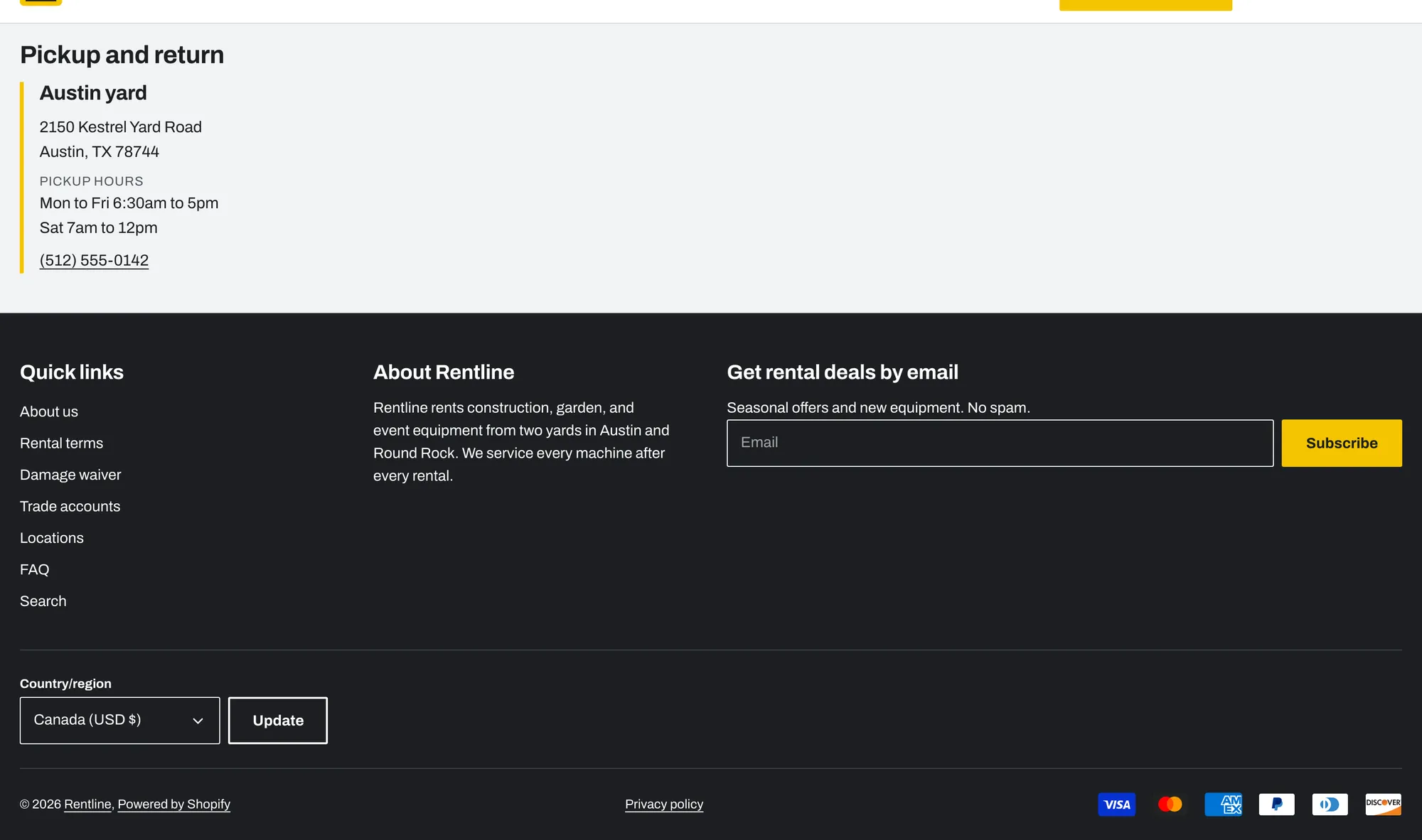
- Color scheme: default Scheme 2.
- Heading: default “Pickup and return”.
- Location (block), up to 6: Location name, Address, Pickup hours, Phone number, and Map link.
Tip: For Map link, paste the share link from your map service. Customers can then open directions.
Footer
| Setting | What it does |
|---|---|
| Color scheme | Default: Scheme 3 (charcoal). |
| Show social media icons | Add links in Theme settings > Social media. |
| Enable Follow on Shop | Shows when Shop Pay is enabled. Customers can follow your store in the Shop app. |
| Show country/region selector | Add countries in Settings > Markets. |
| Show language selector | Add languages in Settings > Languages. |
| Show payment icons | Shows the payment methods your store accepts. |
| Show policy links | Links to the policies in Settings > Policies. |
| Show Powered by Shopify | Shows the “Powered by Shopify” line. |
Footer blocks (up to 6):
| Block | Settings |
|---|---|
| Menu | Heading (default “Quick links”) and Menu (default Footer). |
| Text | Heading (default “About us”) and Text. |
| Email signup | Heading (default “Get rental deals by email”) and Text. Only 1. |
Email signup
Email signups go to Customers in your Shopify admin, with email marketing consent. You can send emails with Shopify Email or another email app.
Social media icons
- Open Theme settings > Social media.
- Paste the full link for each account, for example
https://instagram.com/yourstore. - Leave a field empty to hide that icon.
Rentline supports Facebook, Instagram, YouTube, TikTok, X (Twitter), LinkedIn, and Pinterest.
Not answered here? Send us a support request. We reply within two business days.