Pages and sections
Pages
Create your quote, trade account, damage waiver, locations, how it works, FAQ, and contact pages.
Rentline includes page templates for common rental pages. A template gives a page its sections. You create the page in your admin, then you choose the template.
Page templates
| Template | Sections | Use |
|---|---|---|
page (default) |
Page | About, rental terms, and other text pages. |
contact |
Page, Contact form | General questions. |
quote |
Page, Contact form (“Request a quote”) | Quote requests for long rentals, delivery, or several machines. |
trade-account |
Page, Image with text (“Open a trade account”), Contact form (“Apply for a trade account”) | Trade account applications. |
damage-waiver |
Page, Image with text (“Damage waiver”), FAQ | Explain your damage waiver and deposit. |
locations |
Page, Locations | Your branches, hours, and map links. |
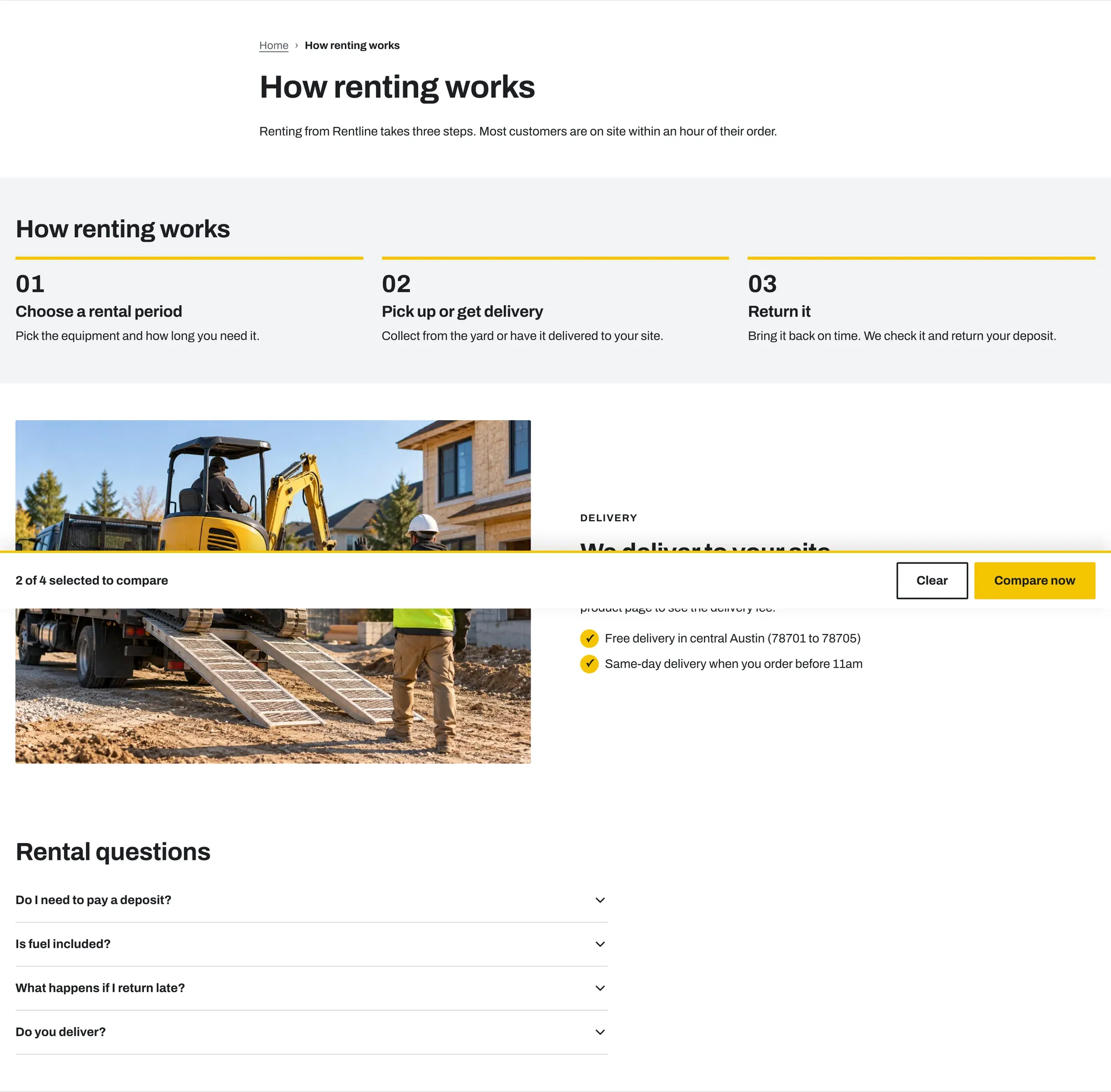
how-it-works |
Page, Steps, Image with text (“We deliver to your site”), FAQ | Explain how renting works, delivery, and common questions. |
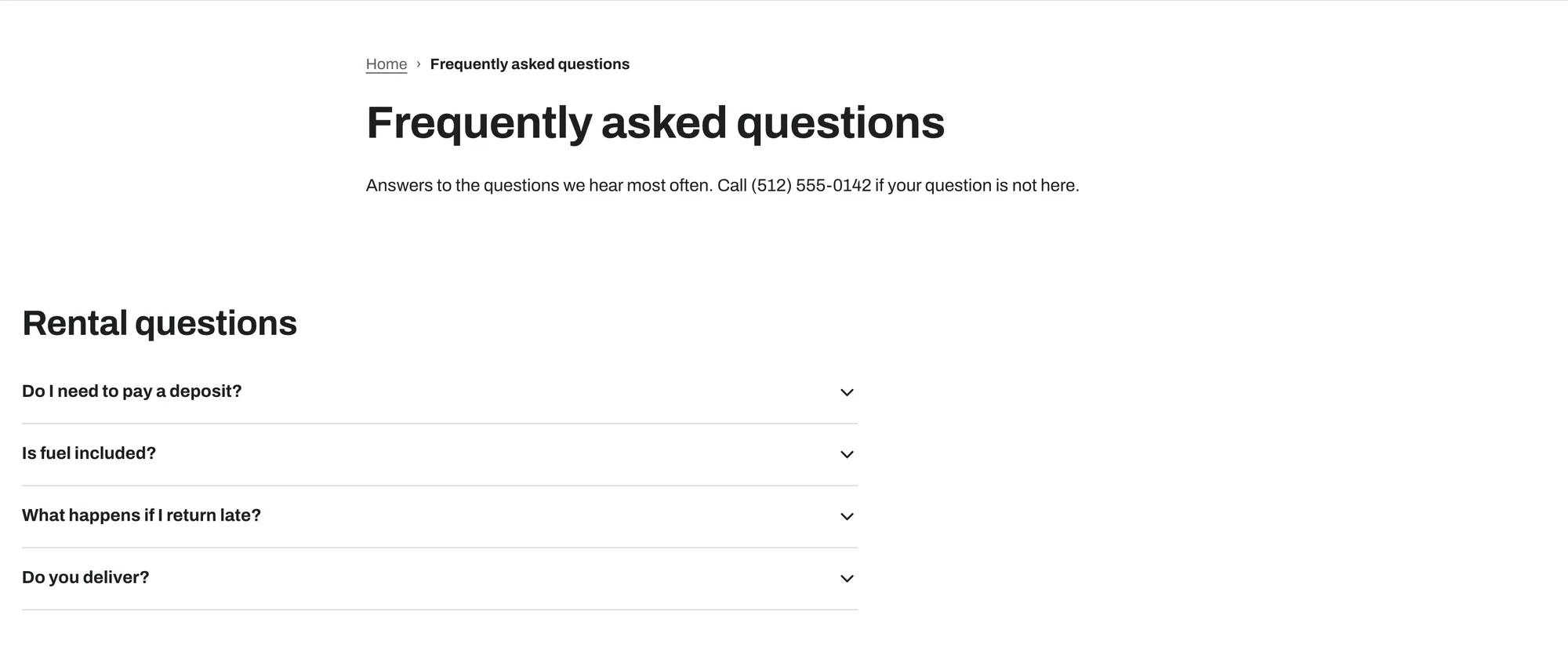
faq |
Page, FAQ | Rental questions. |
The Page section shows the page content that you type in the admin. Its settings are Show breadcrumbs and Color scheme.
Create a page and assign a template
- In your Shopify admin, go to Online Store > Pages.
- Click Add page.
- Enter a Title, for example
Request a quote. - Enter the page content. It shows at the top of the page. You can leave it empty.
- In the Theme template list, choose the template, for example
quote. - Click Save.
- Open the theme editor. In the page selector at the top, choose Pages and the template. Edit the sections there.
Important: Changes to a page template apply to every page that uses that template.
Add the pages to your menus
- Go to Content > Menus.
- Open Main menu or Footer.
- Click Add menu item.
- Select the page.
- Click Save menu.
Contact page
- Create a page named
Contactwith thecontacttemplate. - Add it to your menus.
The form has name, email (required), phone, and message fields.
The quote button in the header and the mega menu promotion go to your Contact page when you do not set a link for them.
Quote request page
- Create a page named
Request a quotewith thequotetemplate. - In the theme editor, open Header and set Quote button > Link to this page. See Quote button.
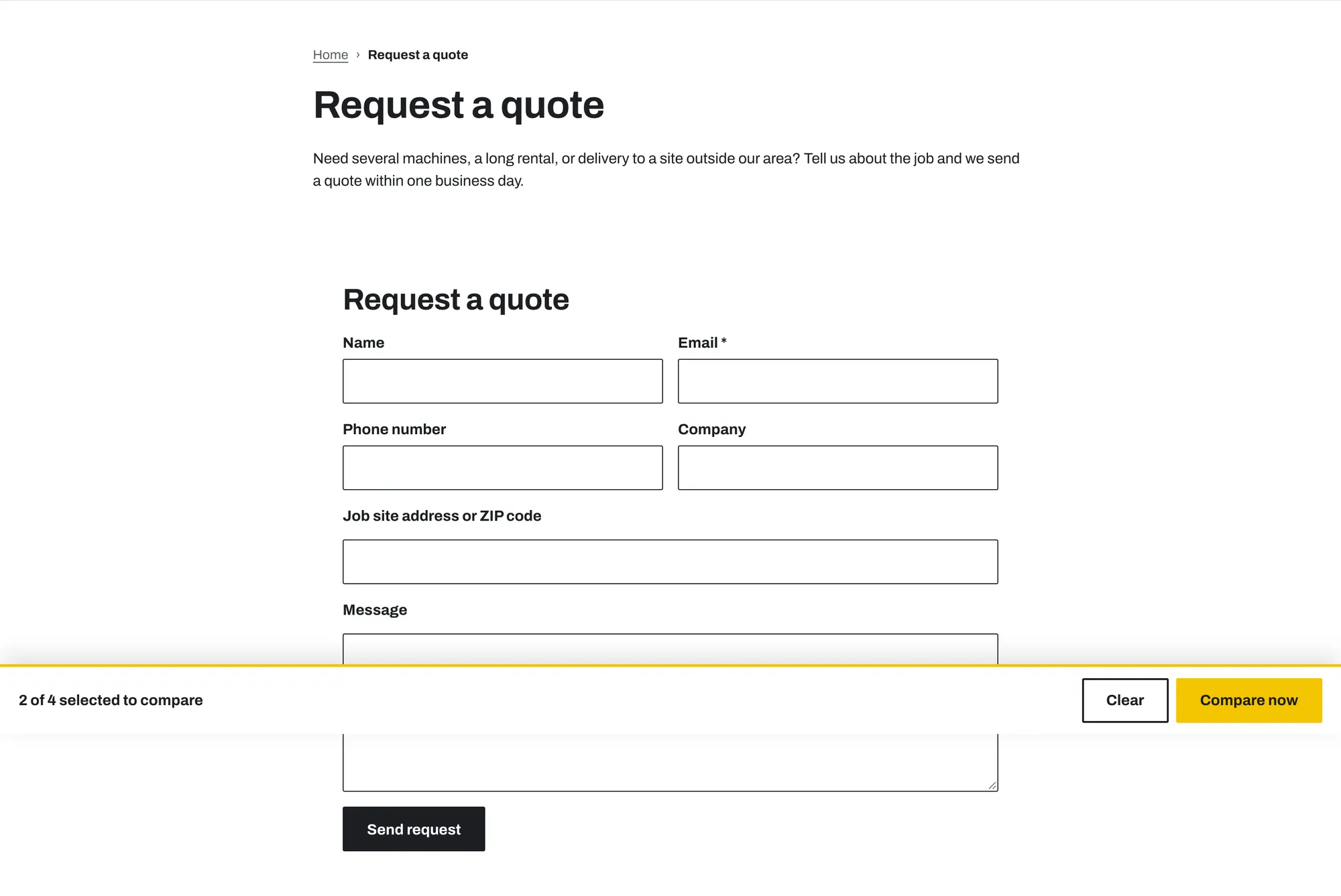
The form has name, email, phone, company, job site, and message fields. To hide the company or job site field, turn off Show company field or Show job site field in the Contact form section.
The quote form collects text only. It does not check availability or calculate a price. You answer each request yourself.
Trade account page
- Create a page named
Trade accountswith thetrade-accounttemplate. - In the theme editor, edit the Image with text section: add an image, your benefits as checklist items, and your terms.
- Link the trade account buttons on the home page and in the mega menu promotion to this page.
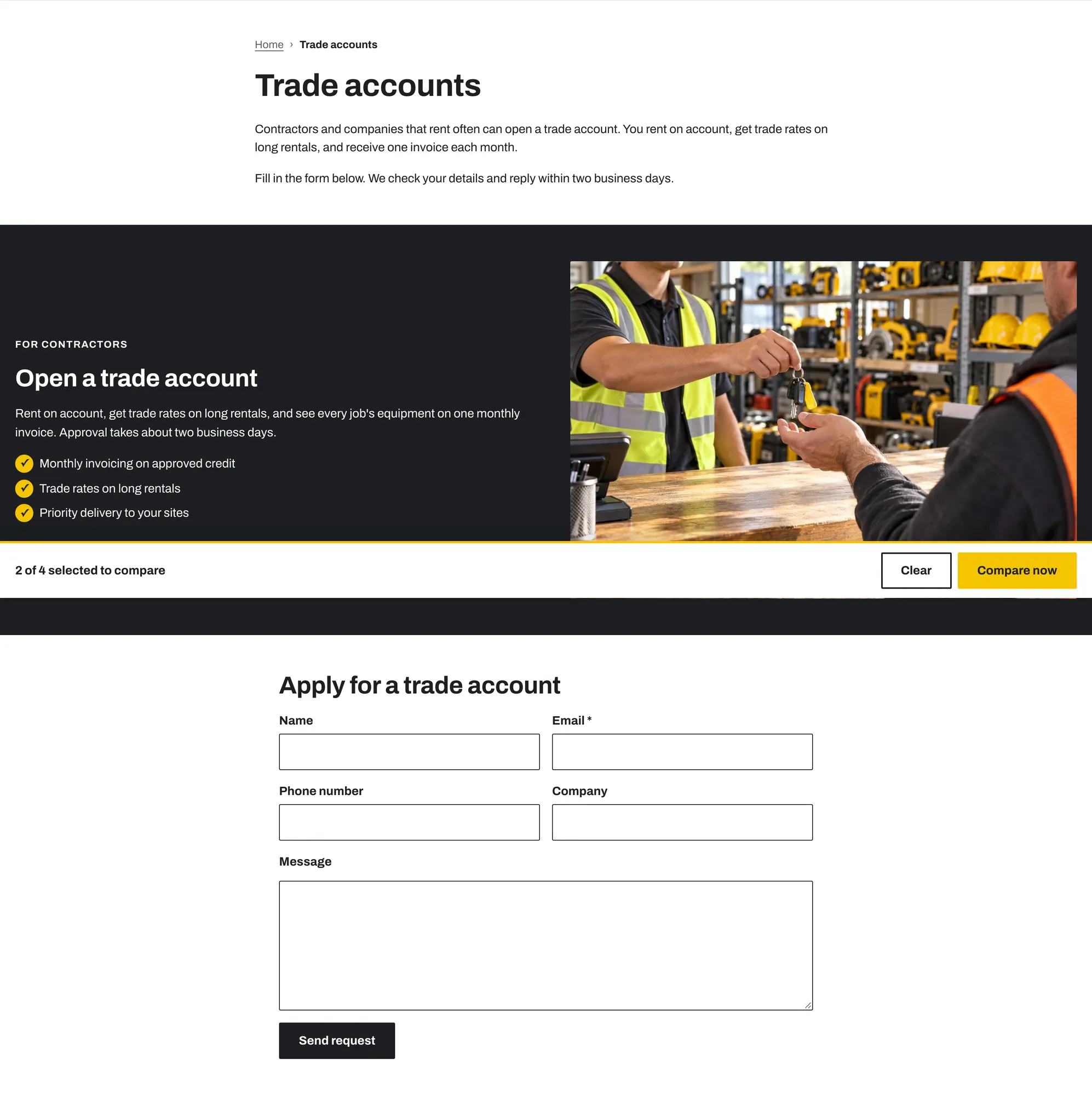
Applications arrive as contact form messages. You approve accounts yourself, for example with Shopify B2B or customer tags. Rentline does not manage credit or invoices.
Damage waiver page
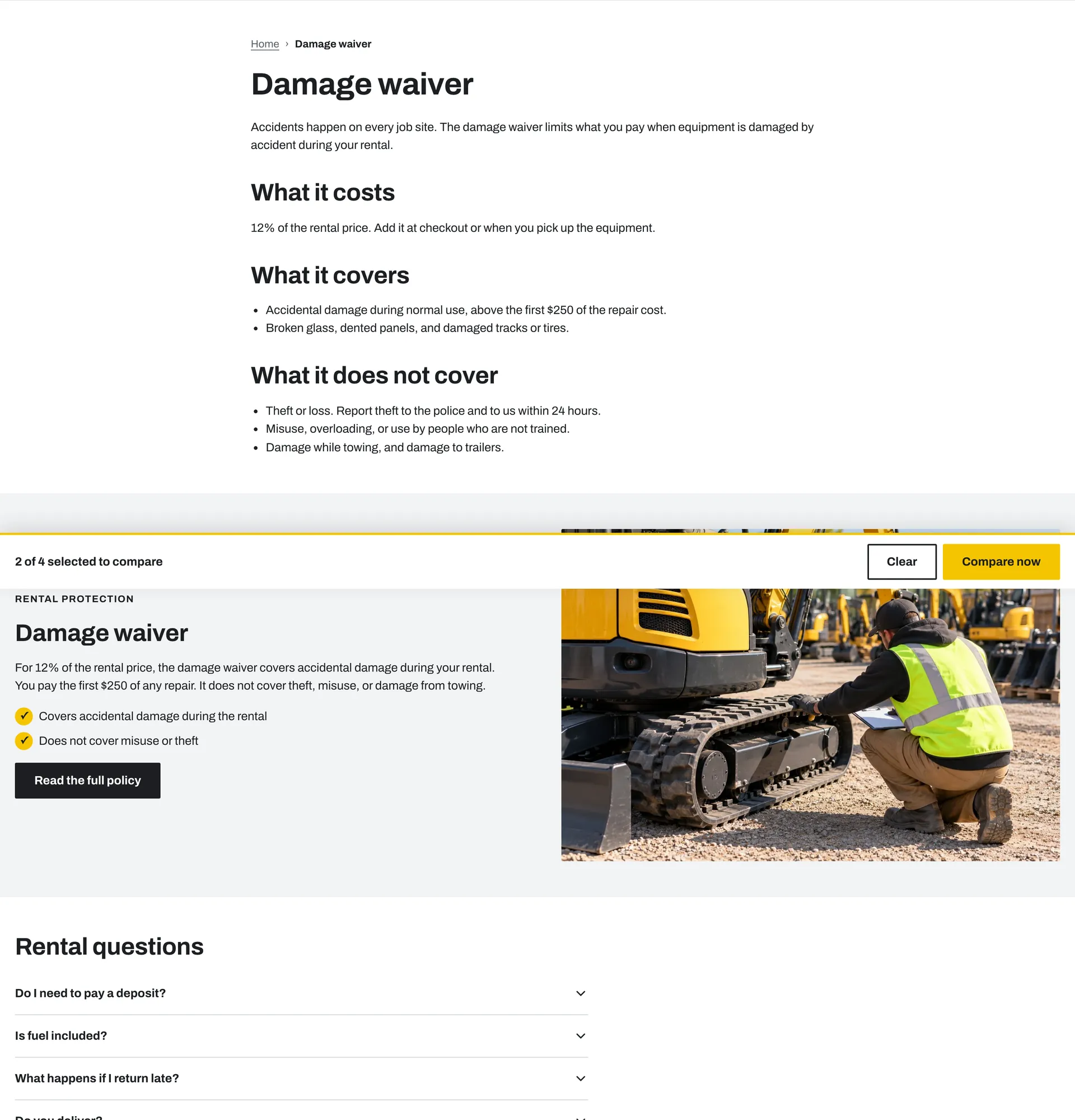
- Create a page named
Damage waiverwith thedamage-waivertemplate. - Explain what the waiver covers, the price, and what customers pay if there is damage.
- Link the Deposit and waiver block on the product page to this page.
Locations page
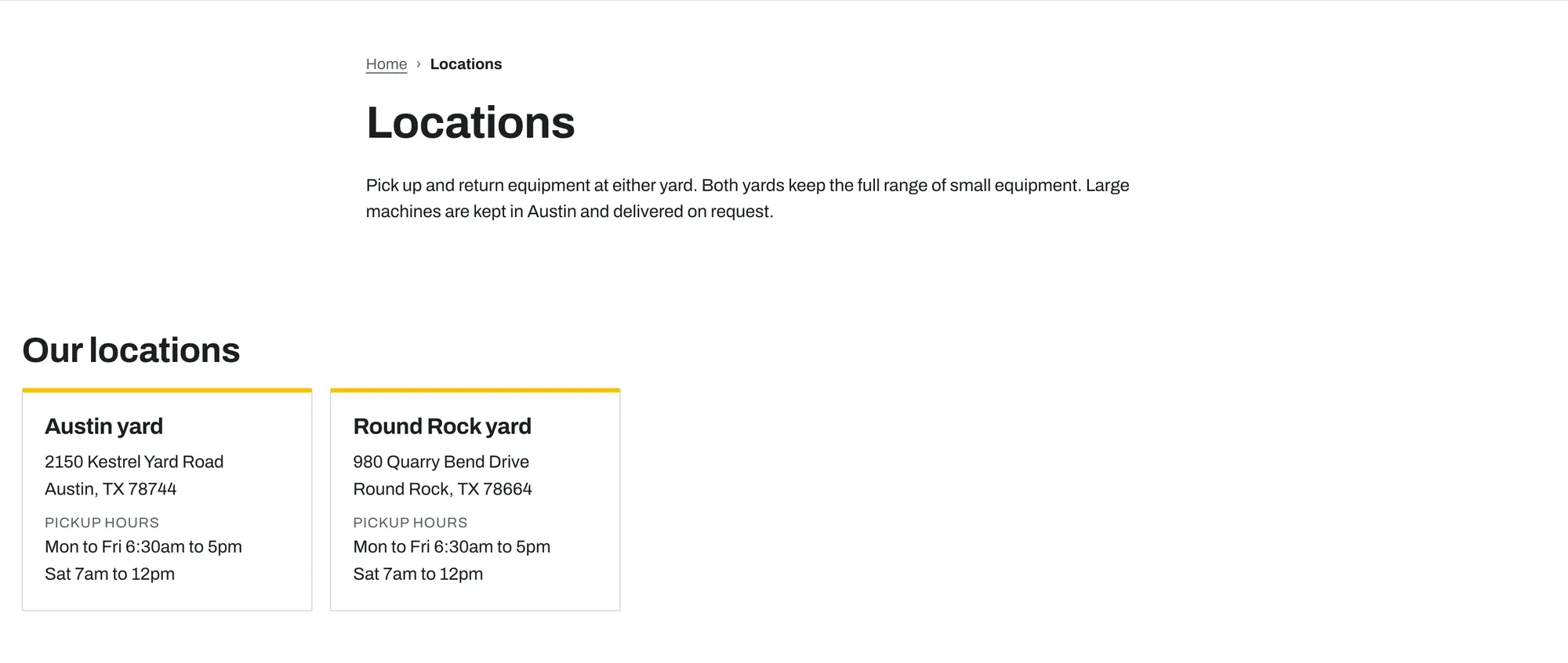
- Create a page named
Locationswith thelocationstemplate. - In the theme editor, add one Location block for each branch.
How it works page
- Create a page named
How renting workswith thehow-it-workstemplate. - Edit the steps, the delivery section, and the questions.
FAQ page
- Create a page named
FAQwith thefaqtemplate. - Add one Question block for each question.
Where form messages go
All Rentline forms use the Shopify contact form. Messages go to the store email address in Settings > Store details. Each message includes the fields the customer filled in, for example “Company” and “Job site”.
Tip: Shopify can protect your forms from spam with hCaptcha. Check your spam protection settings in Online Store > Preferences.
Other templates
Rentline also includes templates for collections, the collection list, search, blogs, articles, the cart, the 404 page, the password page, and gift cards. Shopify uses these automatically.
Collection pages
The Collection section has these settings: Show breadcrumbs, Items per page, Pagination, Columns on desktop, Show collection description, Show collection image, Enable sorting, Enable quick add, and Color scheme.
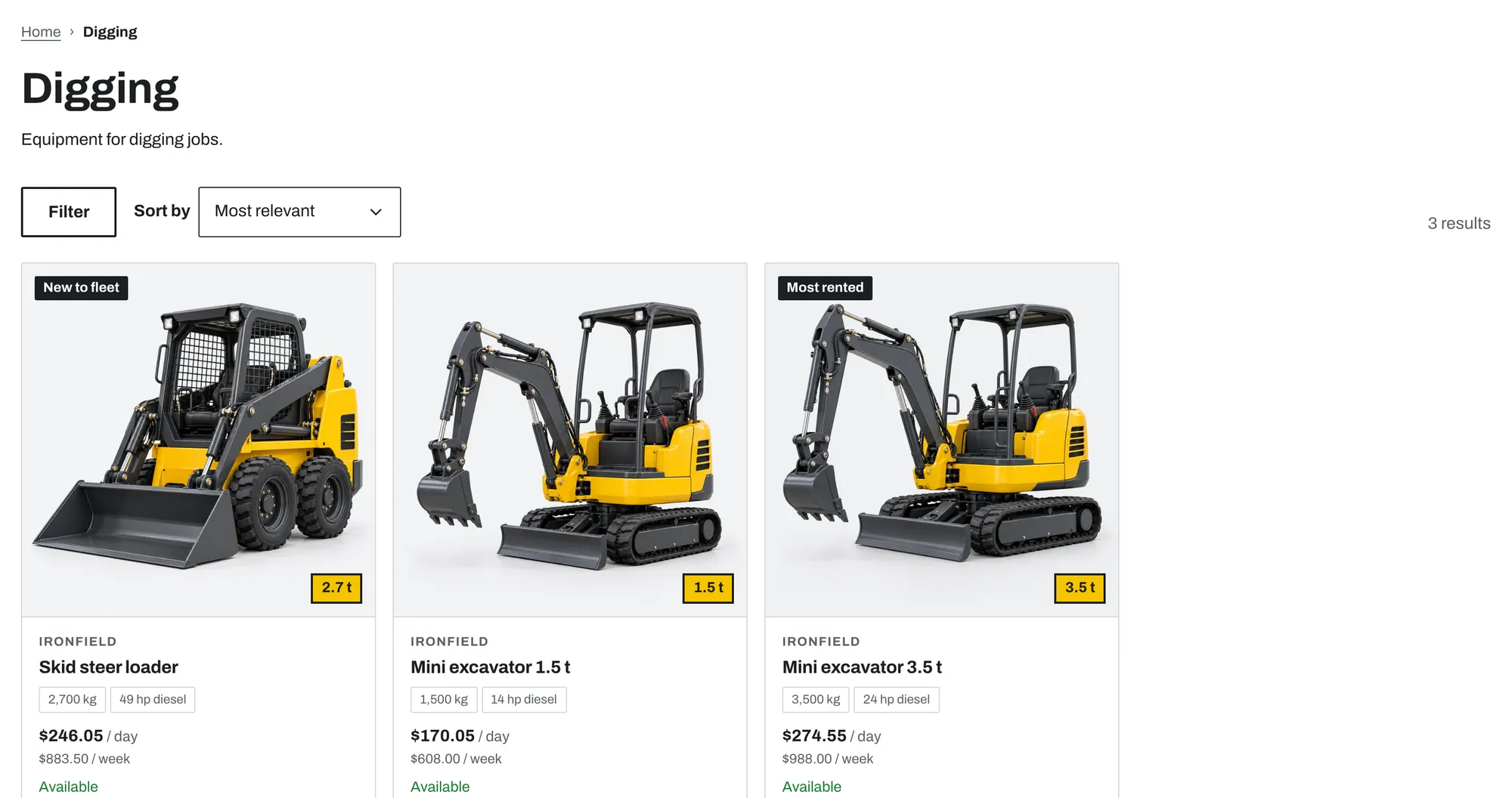
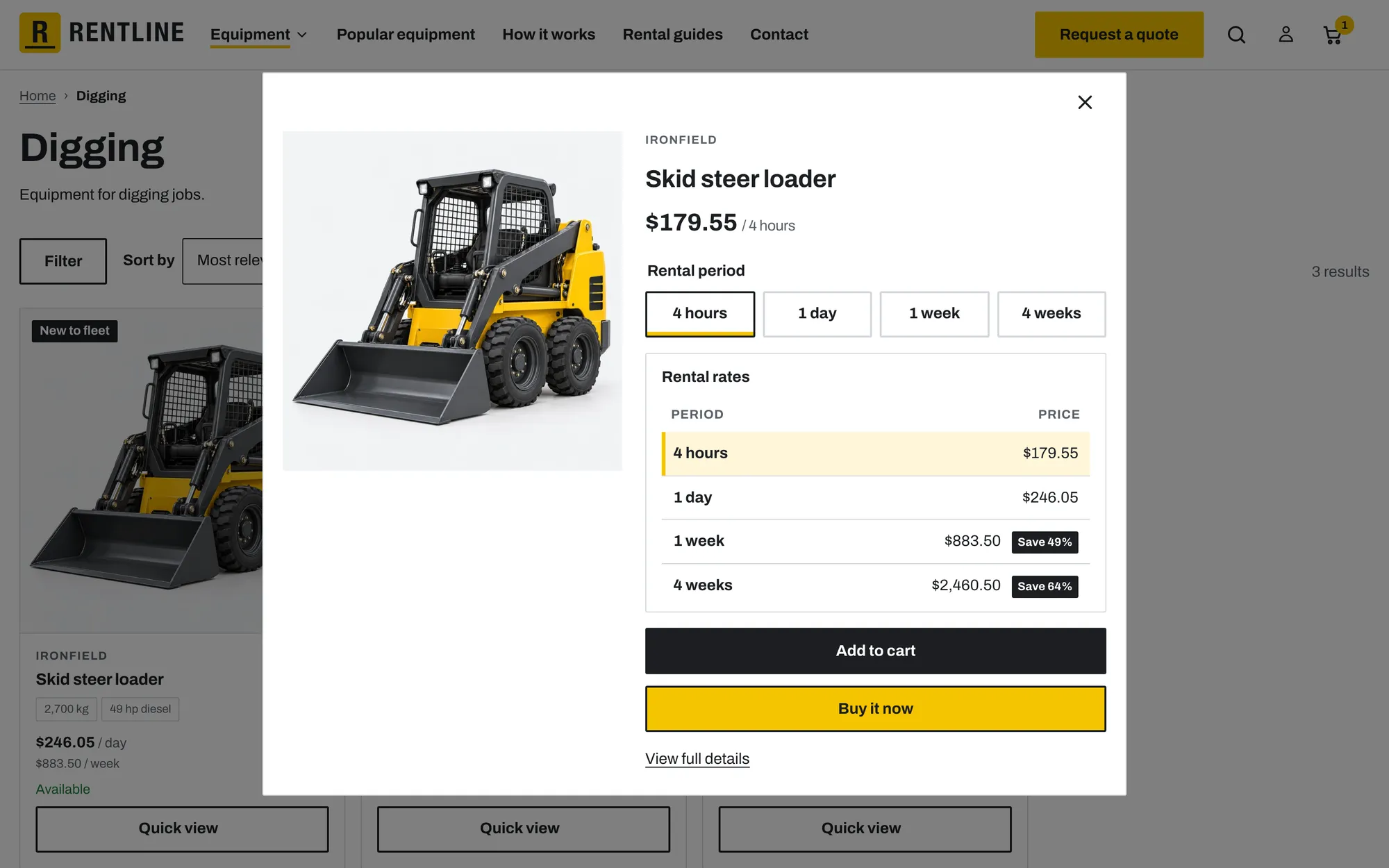
By default, the cards of rental products open the product page instead of quick view. See Card button on rental products.
Pagination can be Page numbers, Load more button (default), or Infinite scroll. Infinite scroll loads the next page when the customer reaches the end of the grid. The Load more button stays for keyboard users.
Filters come from the Shopify Search & Discovery app. In the app, add filters such as availability, price, product type, vendor, and your variant options or metafields.
Search, blog, and collection list
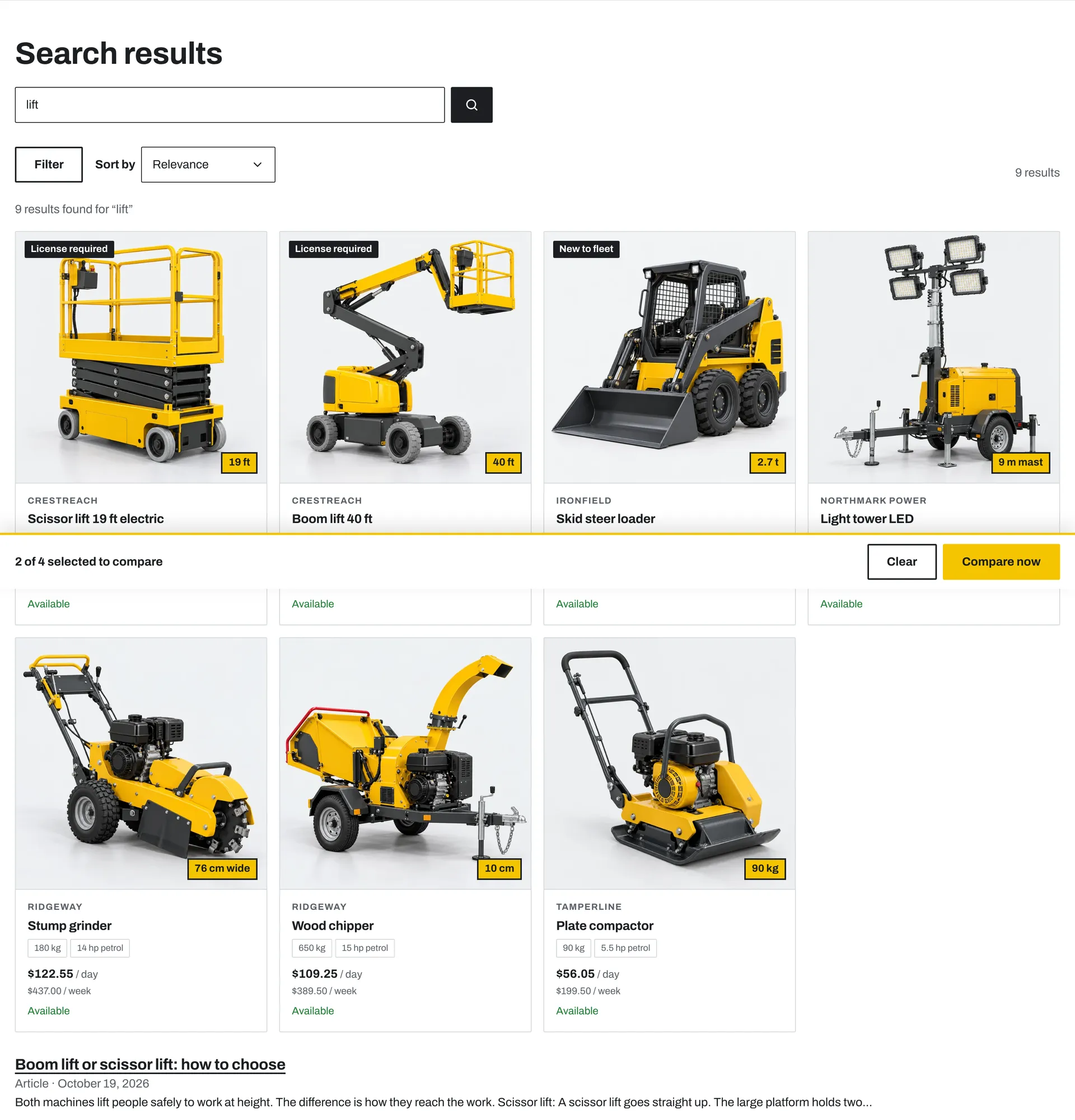
- Search: Results per page and Color scheme.
- Blog: Articles per page and Color scheme.
- Collections (the collection list): Heading, Items per page, and Color scheme.
Password page
The Password section shows while your store is password protected. Settings: Subheading, Heading (leave it empty to use “Opening soon”), Text, Image, Show email signup, and Color scheme. Without an image, a striped panel in your accent color shows next to the text on large screens.
Not answered here? Send us a support request. We reply within two business days.