Get started
Specs and metafields
Create spec metafields, show specs on product cards, set up Compare, and connect spec rows.
Rental customers compare machines by weight, power, size, and capacity. Rentline shows these specs in 4 places:
| Place | Where you set it |
|---|---|
| Spec chips on product cards (up to 3) | Theme settings > Product cards > Spec metafields |
| Image badge on product cards (1) | Theme settings > Product cards > Image badge metafield |
| Compare table (up to 6 rows) | Theme settings > Compare |
| Key specs block and Spec sheet section on the product page | Dynamic sources in the theme editor |
All 4 use product metafields. A metafield is an extra field on a product. You create the metafield definition once, then you enter a value on each product.
Step 1: Create metafield definitions
You must create a definition for each spec. Without a definition, the theme editor cannot connect a block to the metafield.
- In your Shopify admin, go to Settings > Custom data.
- Click Products.
- Click Add definition.
- Enter a Name, for example
Weight. - Check the Namespace and key. Shopify suggests one, for example
custom.weight. Write it down. You need it in the theme settings. - Click Select type and choose Single line text.
- Click Save.
- Do these steps again for each spec.
Suggested definitions:
| Name | Namespace and key | Example value |
|---|---|---|
| Weight | custom.weight |
3,500 kg |
| Power | custom.power |
24 hp diesel |
| Size class | custom.size_class |
3.5 t |
| Dig depth | custom.dig_depth |
3.1 m |
Tip: Use Single line text and include the unit in the value, for example “3,500 kg”. The value then shows exactly as you type it. Other types, such as number or measurement, can show in a different format.
Step 2: Enter values on each product
- Go to Products and open a product.
- Scroll to Metafields.
- Enter a value for each spec.
- Click Save.
If a product has no value for a spec, the theme hides that spec for that product.
Step 3: Show specs on product cards
- In the theme editor, open Theme settings > Product cards.
- Under Specs on cards, find Spec metafields.
- Enter up to 3 namespace and key pairs, one per line or separated by commas. For example:
custom.weight, custom.power - In Image badge metafield, enter one namespace and key, for example
custom.size_class. This value shows on the product image, for example “3.5 t”. - Click Save.
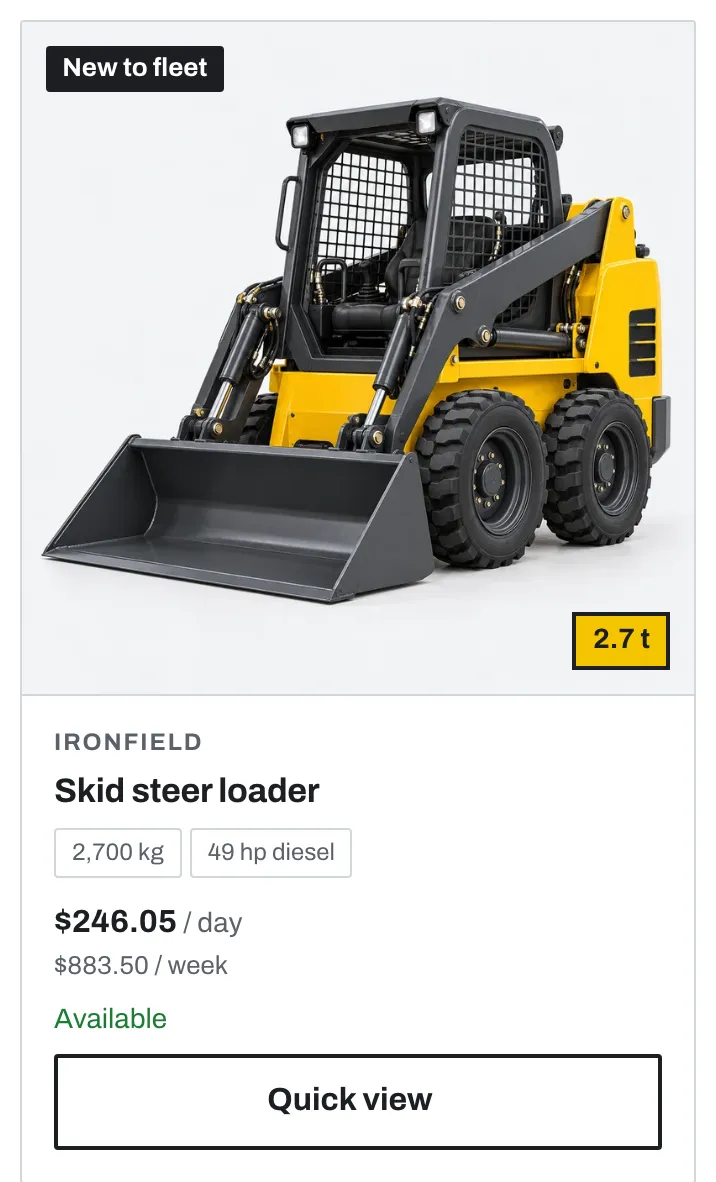
The theme shows the first 3 keys only. Leave a field empty to hide that feature.
In the theme editor, a card shows a dashed chip, for example “custom.wieght: no value”, when a key has no value on that product. Customers do not see it. A dashed chip on every card usually means a typo in the key.
Set up Compare
Customers can add up to 4 products to a compare list. A compare bar shows at the bottom of the screen. The compare table shows the image, title, price per period, and the specs you choose.

- Open Theme settings > Compare.
- Make sure Enable compare is on.
- In Specs to compare, enter up to 6 specs, one per line. Write the namespace and key, a vertical bar (
|), and the row label. For example:custom.weight | Weight custom.power | Power custom.dig_depth | Dig depth - Click Save.
The label is optional. Without a label, the row shows the key. Do not use commas in labels.
If Specs to compare is empty, Compare uses the card spec metafields.
| You enter | Row label | Value comes from |
|---|---|---|
custom.weight | Weight |
Weight | The product’s custom.weight metafield |
custom.max_height | Working height |
Working height | The product’s custom.max_height metafield |
specs.fuel |
specs.fuel | The product’s specs.fuel metafield |
To let customers add a product to the list, add the Compare button block to the product section. See Compare button.
The compare list is saved in the customer’s browser. It is not saved in your store, and it does not follow the customer to another device.
Step 4: Connect Key specs and Spec sheet rows
The Key specs block (near the price) and the Spec sheet section (a full table below the product) have rows. Each Spec row has a Label and a Value. Connect the Value to a metafield, so each product shows its own value.

- In the theme editor, open a product page. Use the page selector at the top.
- In the sidebar, open the Key specs block. Select a Spec row.
- In Label, enter the spec name, for example
Weight. - Next to Value, click the Connect dynamic source icon.
- Select the metafield, for example Weight.
- Do these steps again for each row.
- Do the same for the rows in the Spec sheet section.
- Click Save.
When a product has no value for a connected metafield, that row is hidden on that product.
Important: The product template applies to all products that use it. If you type a fixed value in Value instead of connecting a metafield, every product shows the same value.
In the default template, the rows have labels but no values, so customers do not see them. In the theme editor, each empty row shows the note “Add a value or connect a metafield”. Connect the rows that you need, and delete the others.
Other blocks you can connect
You can connect these settings to metafields in the same way:
| Block | Setting | Suggested metafield type |
|---|---|---|
| Subtitle | Text | The standard Product subtitle metafield |
| License badge | Text | Single line text. Products with no value hide the badge. |
| Deposit and waiver | Text | Rich text or multi-line text |
| Safety and manuals > Document | Link | URL, or a file link |
Search suggestions
When you set card spec metafields, the header search suggestions also show the first 2 spec values next to each product.
Not answered here? Send us a support request. We reply within two business days.