Pages and sections
Home page sections
The rental hero, icon row, collection cards, testimonials, FAQ, and every other section you can add.
To edit the home page, open the theme editor. The home page opens first. Click Add section to add a section. Drag sections to change their order.
Most sections have a Color scheme setting. See Set color schemes.
The default home page has these sections, from top to bottom: Rental hero, Icon row, Collection cards, Featured collection, Steps, Image with text (trade accounts), Logo strip, Image with text (delivery area), Locations, Testimonials, FAQ, Blog posts, and Email signup.
Rental hero
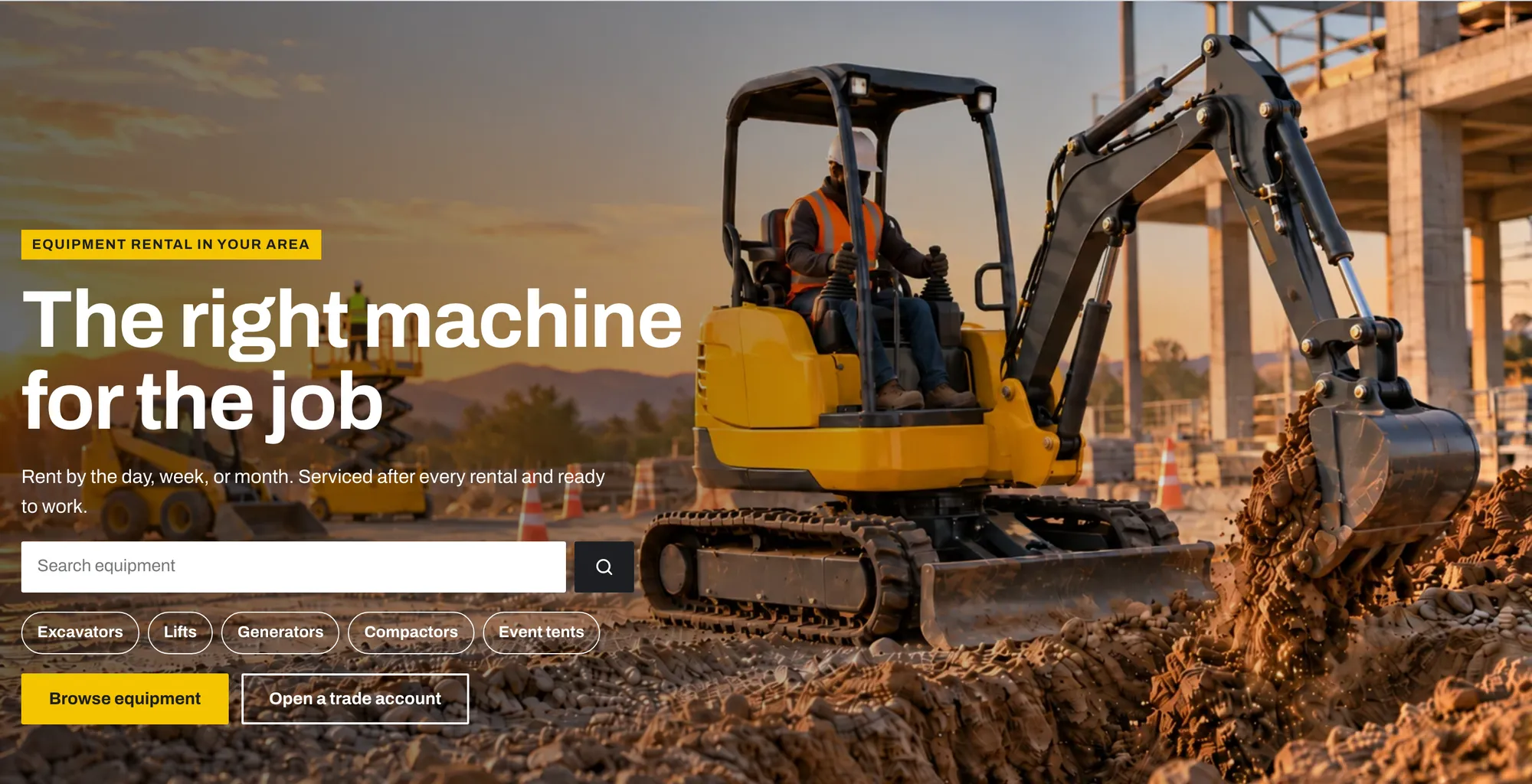
The large first section, with a heading, equipment search, and buttons.
| Setting | What it does |
|---|---|
| Layout | Full width (text over the image), Split (image and text side by side), or Panel (text in a colored panel). |
| Image | 2400 x 1200px .jpg recommended. |
| Background video | Plays muted on a loop. Replaces the image. |
| Image overlay opacity | Makes the image darker, so text is easy to read. |
| Height | Small, Medium, or Large. |
| Service area | A short line above the heading, for example “Equipment rental in Austin”. |
| Heading | Default: “The right machine for the job”. |
| Text | A short description. |
| Show equipment search | Shows a search box with suggestions. |
| First button label / First button link | Default label: “Browse equipment”. |
| Second button label / Second button link | Default label: “Open a trade account”. |
| Color scheme | Used for the Panel and Split layouts. |
Category chip blocks (up to 8): select a Collection. When Label is empty, the chip uses the collection title. Chips are quick links under the search box.
Tip: When the hero is the first section on the home page, its heading is the main page heading. Keep it short and clear.
Icon row
Short trust points with icons. The preset is called Trust strip.

- Heading (optional).
- Item (block), up to 6: Icon (None, Wrench, Truck, Clock, Phone, Map pin), Title, and Text.
Collection cards
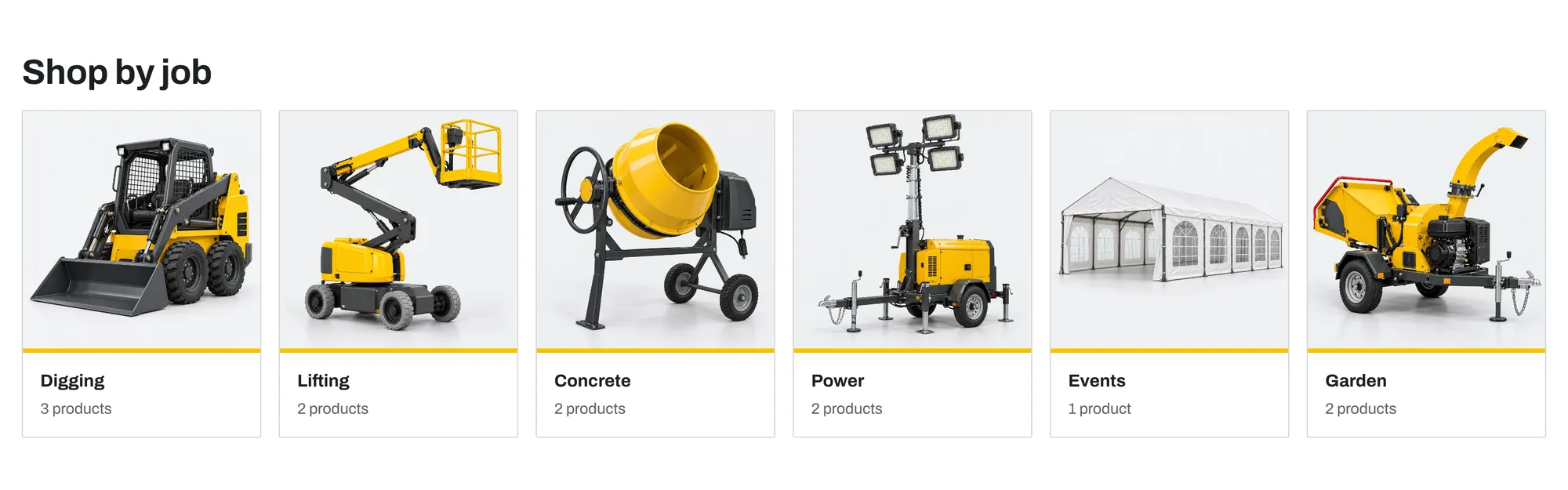
Image cards that link to collections. The preset is called Shop by job. Use it for job categories, for example Digging, Lifting, and Concrete.
| Setting | What it does |
|---|---|
| Heading | Default: “Shop by job”. |
| Columns on desktop | 3, 4, or 6. |
| Show product count | Shows the number of products in each collection. |
Collection block (up to 12): Collection, Label (uses the collection title when empty), and Image (uses the collection image when empty).
Featured collection
Product cards from one collection. The preset is called Featured equipment.
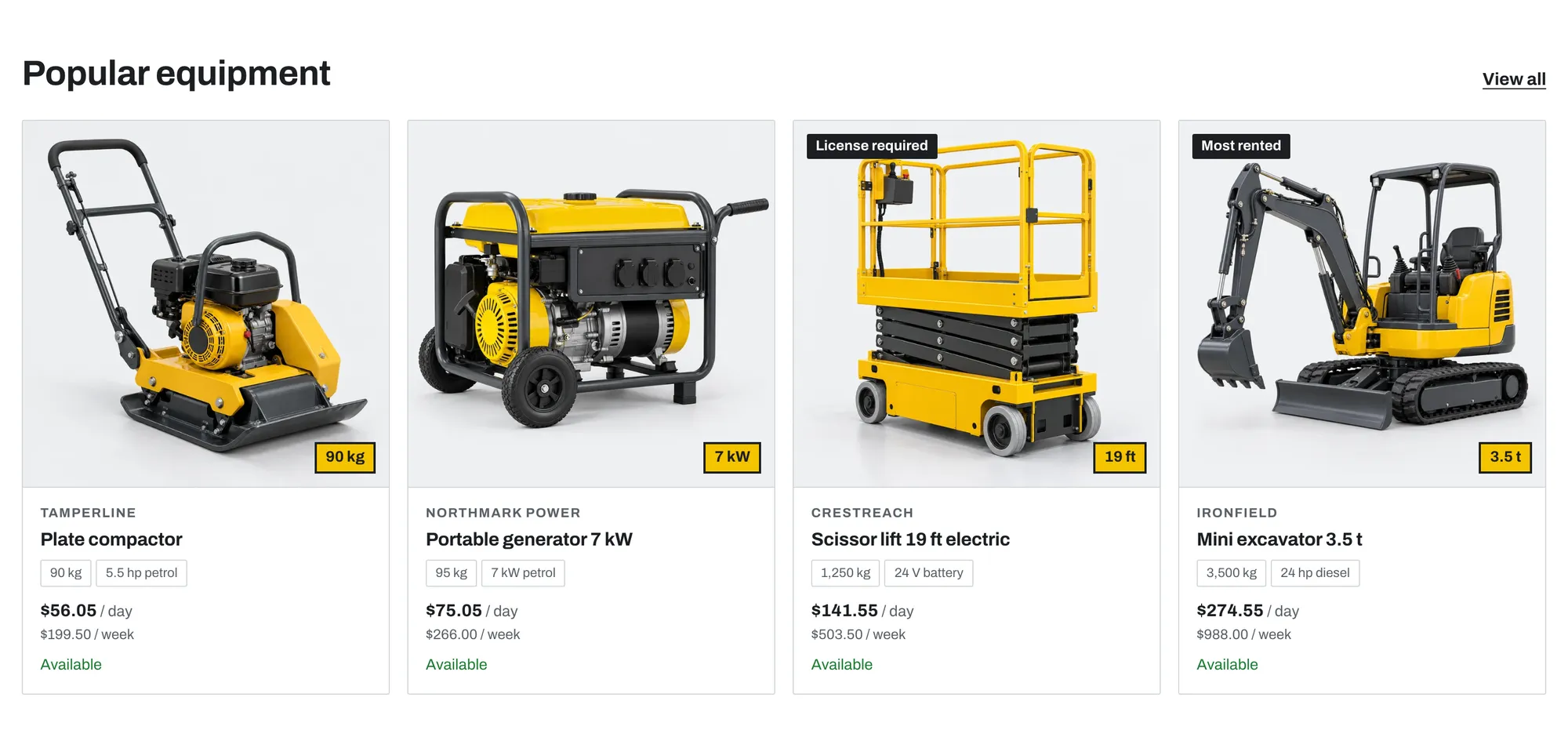
- Heading (default “Popular equipment”), Collection, Number of products, Columns on desktop (3, 4, or 5), Show View all link, and Enable quick add.
Cards follow Theme settings > Product cards.
Featured product
One product with its full product blocks, on any page.
- Product and Media position on desktop.
- Add the same blocks as on the product page, including app blocks.
Steps
Numbered steps. The preset is called How renting works.

- Heading: default “How renting works”.
- Step (block), up to 6: Title and Text.
Image with text
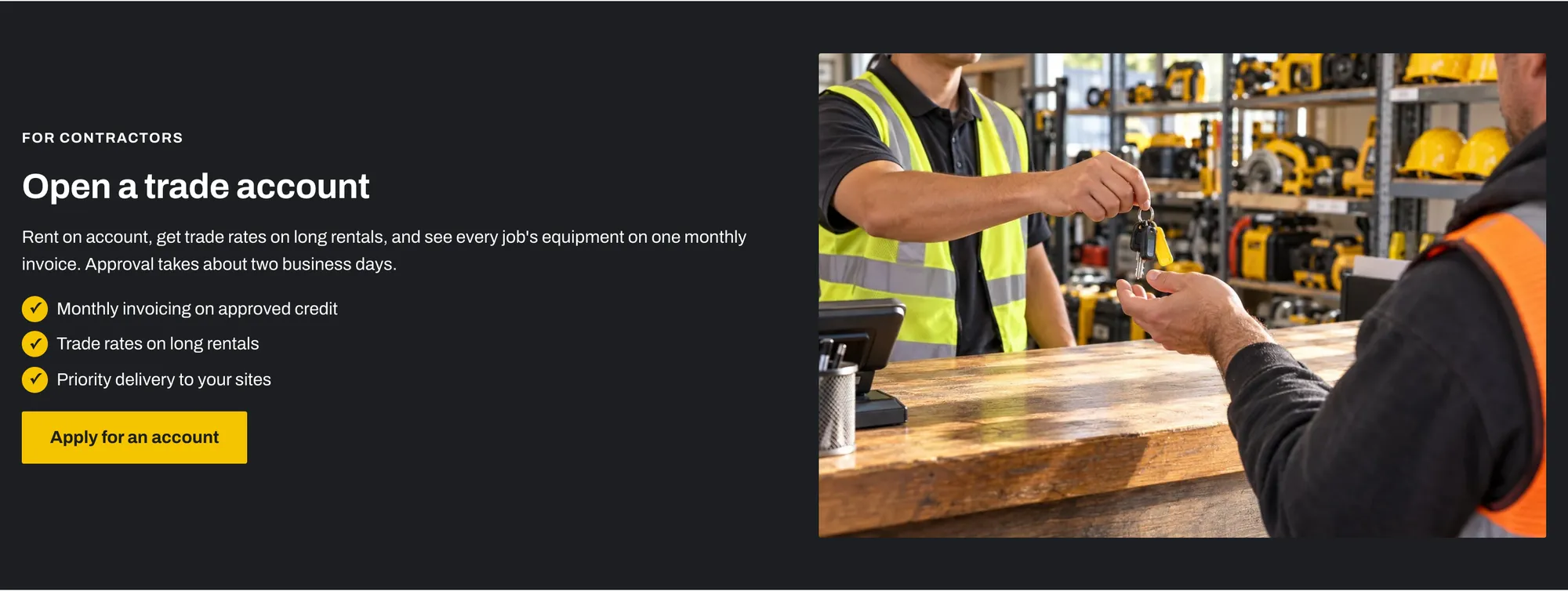
An image next to a heading, text, a checklist, and a button. Rentline has 4 presets with rental content:
| Preset | Use |
|---|---|
| Image with text | General use. |
| Trade accounts | Invite contractors to apply for a trade account. Link the button to your trade account page. |
| Delivery area | List the towns or ZIP codes you serve and your delivery fees. |
| Damage waiver | Explain what your damage waiver covers. Link the button to your damage waiver page. |
Settings: Image, Image position on desktop, Subheading, Heading, Text, Button label, and Button link. Checklist item blocks (up to 8) add a list of benefits with check marks.
Logo strip
Logos of the brands you rent. The preset is called Brands we rent.

- Heading and Show logos in grayscale.
- Logo (block), up to 12: Logo (400 x 150px .png recommended), Brand name, and Link. Brand name is used as alt text. It shows as text when there is no logo.
Important: Show only logos that you have permission to use.
Locations
Your branches or yards. Up to 12.
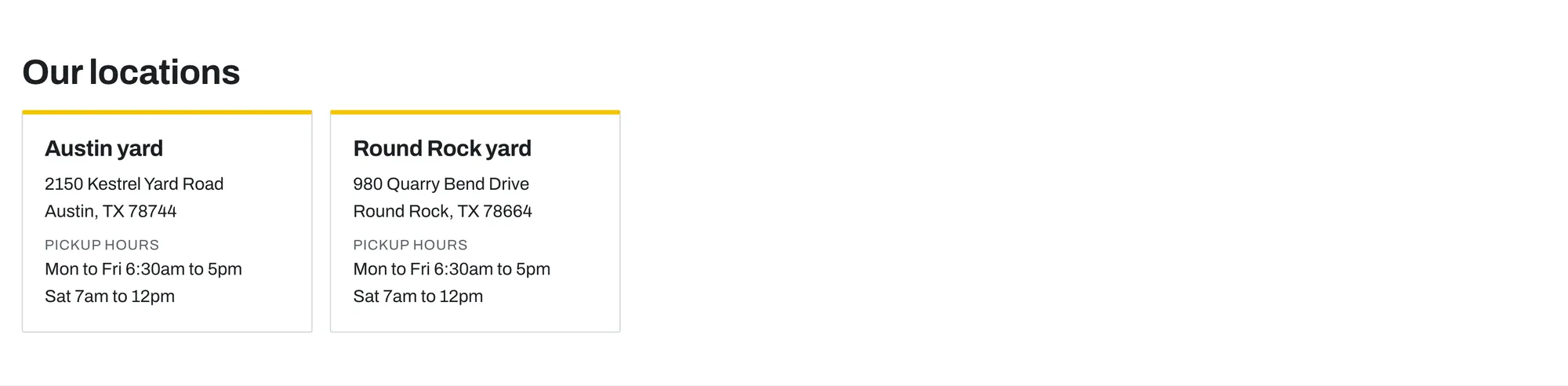
- Heading and Text.
- Location (block): Location name, Address, Pickup hours, Phone number, and Map link.
Testimonials
Quotes from your customers. Up to 6.
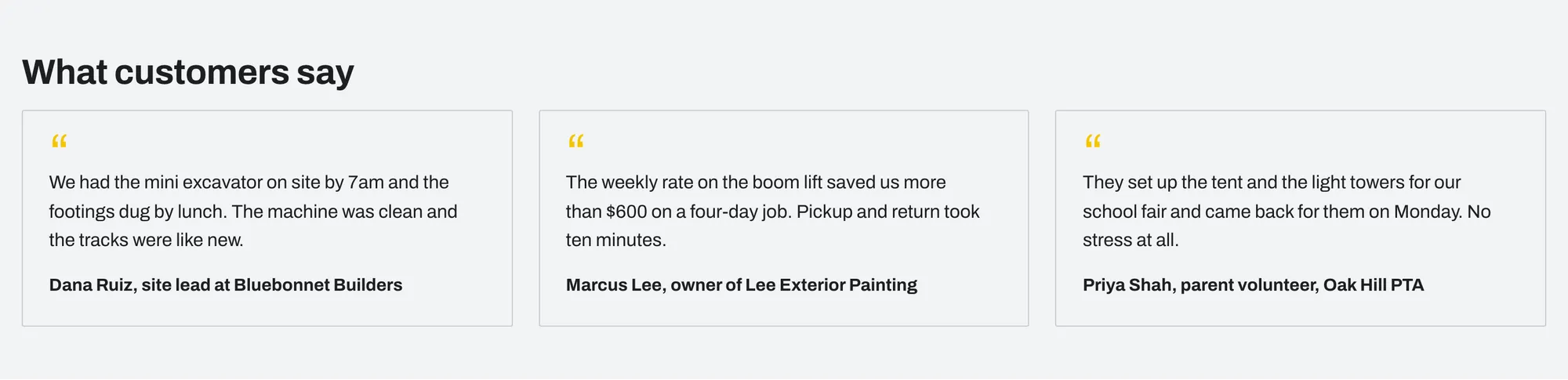
| Block setting | What it does |
|---|---|
| Star rating | The rating the customer gave. Set it to 0 to hide the stars. Default: 0. |
| Quote | The customer’s words. |
| Name | The customer’s name. |
| Company or role | For example “Site manager, Ridgeway Builders”. |
| Photo | A customer or job site photo. 96 x 96px .jpg recommended. |
Important: Use only real quotes and the real rating that each customer gave. Do not invent quotes or ratings. The theme does not collect reviews. For product reviews, use a reviews app.
FAQ
Questions that open to show the answer. Up to 20.
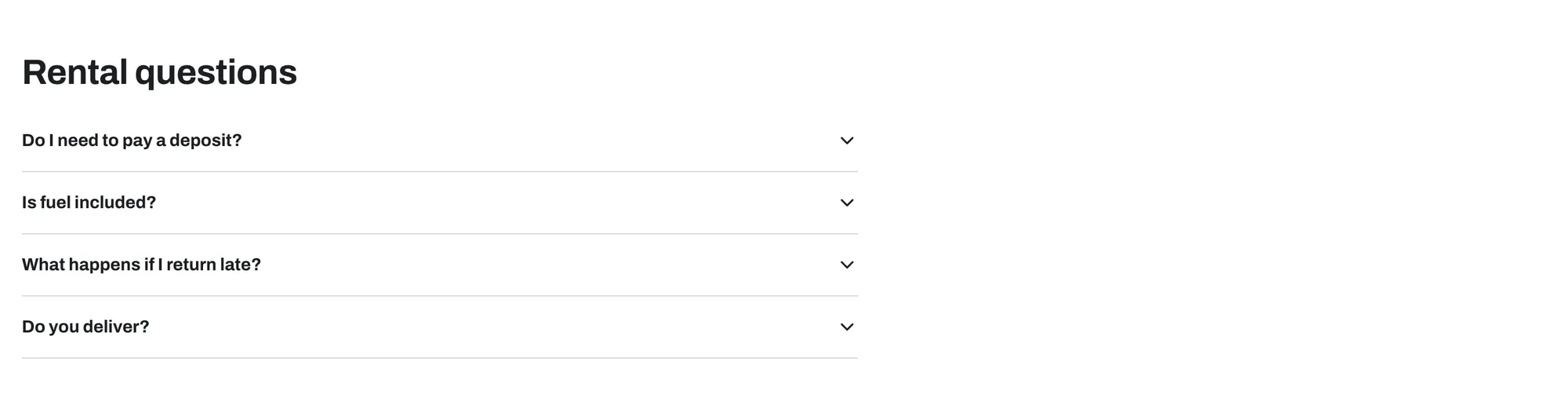
- Heading: default “Rental questions”.
- Question (block): Question and Answer.
Blog posts
Recent articles from a blog, for example guides such as “Which excavator size do I need?”.
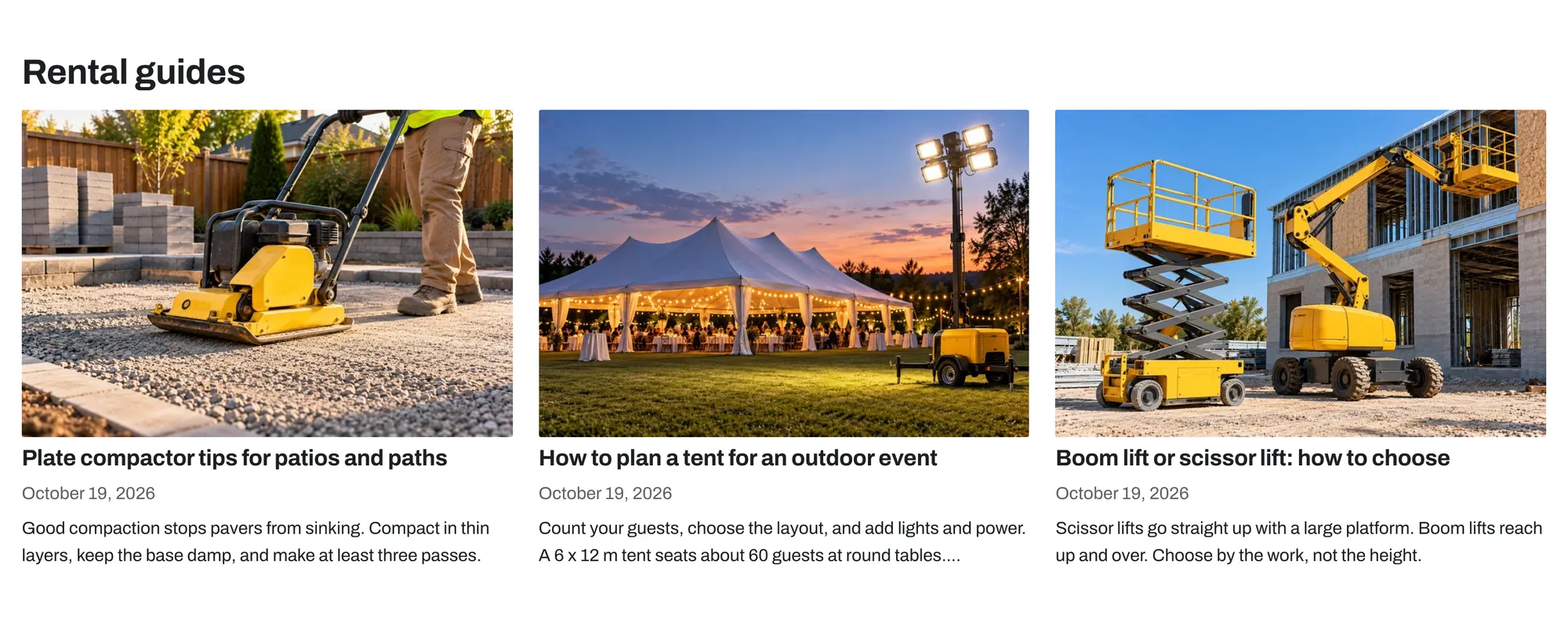
- Heading (default “Guides and tips”), Blog, and Number of posts.
Email signup
A newsletter signup form.

- Heading, Text, and Color scheme (default Scheme 4).
Signups go to Customers in your Shopify admin.
Video
- Heading.
- Uploaded video, or YouTube or Vimeo link.
- Cover image: shows before the video plays.
- Video description: describes the video for screen readers.
YouTube and Vimeo videos load only when the customer clicks play. This keeps the page fast.
Slideshow
Slides with an image, text, and a button. Up to 6 slides.
| Setting | What it does |
|---|---|
| Slideshow name for screen readers | Describes the slideshow, for example “Recent jobs”. |
| Height | Small, Medium, or Large. |
| Text style | Text in a box or Text on the image. “Text on the image” uses white text. |
| Change slides automatically | Off by default. Customers can pause. Slides never change automatically for customers who reduce motion. |
| Change slides every | 4 to 12 seconds. |
Slide (block): Image, Subheading, Heading, Text, Button label, Button link, Text position (Left or Center), and Image overlay. The overlay applies when the text style is “Text on the image”. Increase it on light photos so the text stays easy to read.
Before and after
Two images with a divider that customers drag, for example a site before and after a job.
- Heading, Text, Before image, and After image. Use images with the same size and framing.
- Before label and After label. Leave them blank to use “Before” and “After”.
- Image ratio: Landscape (16:9), Landscape (3:2), or Square.
- Divider start position: 10% to 90%.
Delivery area check
A section where customers enter a ZIP code or postcode and see if you deliver there.
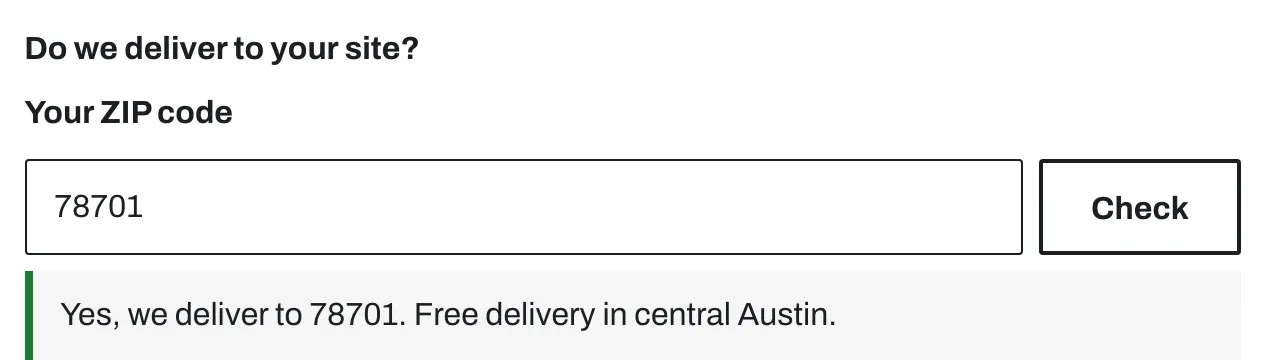
- Heading (default “Do we deliver to your site?”) and Text.
Add your delivery areas in Theme settings > Delivery area. See Delivery area check.
Rich text
A heading, text, and an optional button.
- Heading, Text, Button label, Button link, and Alignment (Left or Center).
Contact form
A contact form on any page. The presets are Contact form and Quote request form.
- Heading, Show company field, and Show job site field.
See Pages for the quote and trade account pages.
Custom section
An empty section. Add blocks such as Text, Group, and Custom Liquid to build your own layout. You can set a Background image.
Custom Liquid
- Custom Liquid: add app snippets or other Liquid code.
- Add space above and below.
Our support does not cover custom code. See the Support policy.
Not answered here? Send us a support request. We reply within two business days.